Reports and exports
Open the evaluation and click Report in its side menu, or choose View Report from the ⋮ menu in the list. The report updates as answers come in.
The summary cards
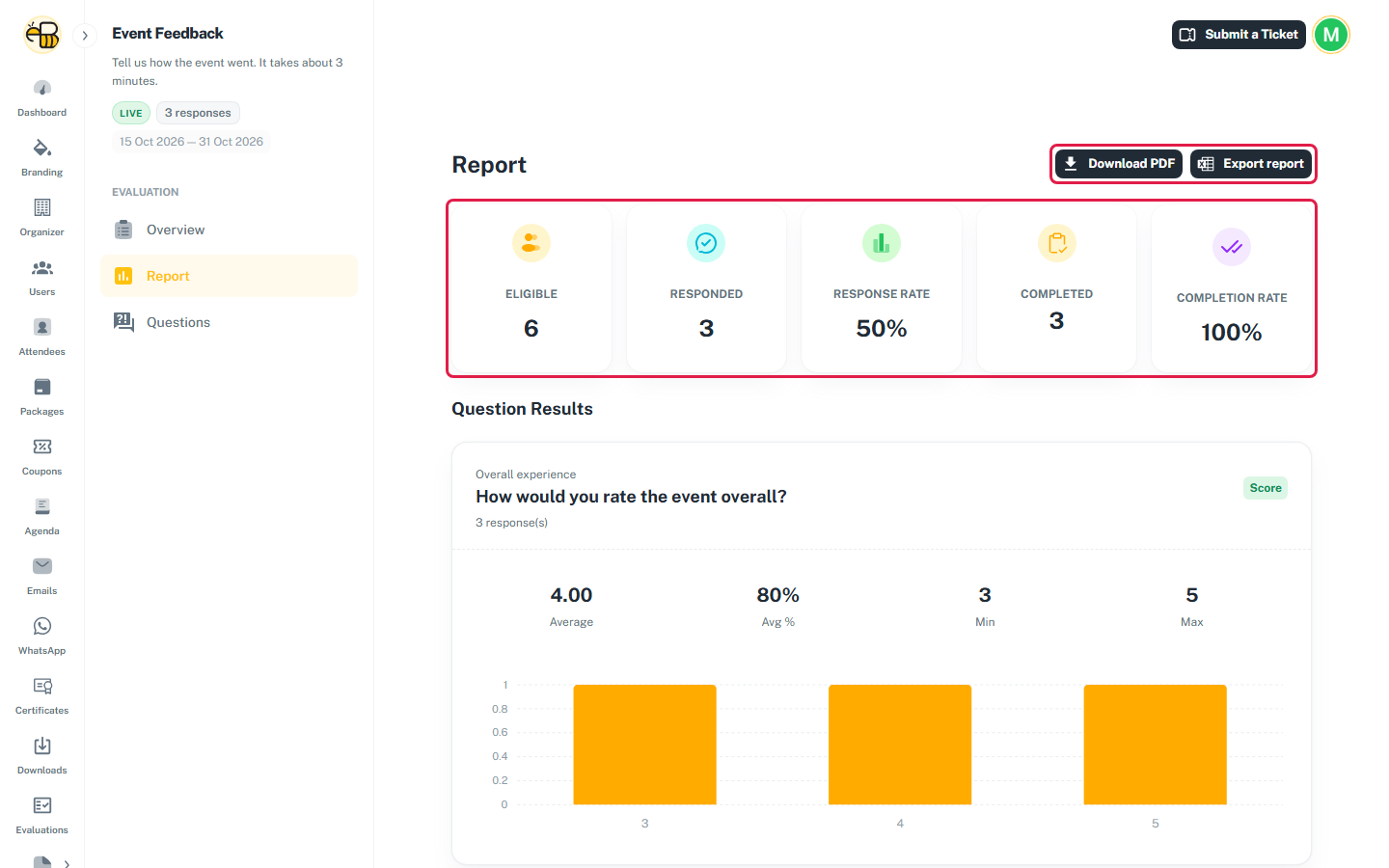
| Card | What it counts |
|---|---|
| Eligible | Event attendees who are in the target audience (and have checked in, if Require event attendance is on). This doesn't depend on the dates. |
| Responded | Attendees who answered at least one question. |
| Response Rate | Responded ÷ Eligible. |
| Completed | Respondents who answered every required question. If the evaluation has no required questions, every respondent counts. |
| Completion Rate | Completed ÷ Responded (not ÷ Eligible). |
In the example above, 3 of the event's 6 attendees answered (50%), and all 3 answered every required question (100%).
Question results
Under Question Results there's one card per question, in form order. Each card shows the group name, the question, its type and how many people answered it.
| Type | What you see |
|---|---|
| Score | Average, Avg % (the average as a percentage of the maximum score), Min, Max, and a bar chart of how many people gave each score. |
| Select, Multi Select, Checkbox | A bar for each option, labelled with the count and the % of people who answered the question. With Multi Select and Checkbox, the percentages can add up to more than 100%. |
| Text | Every answer, listed. |
| Number | Min, Average and Max. |
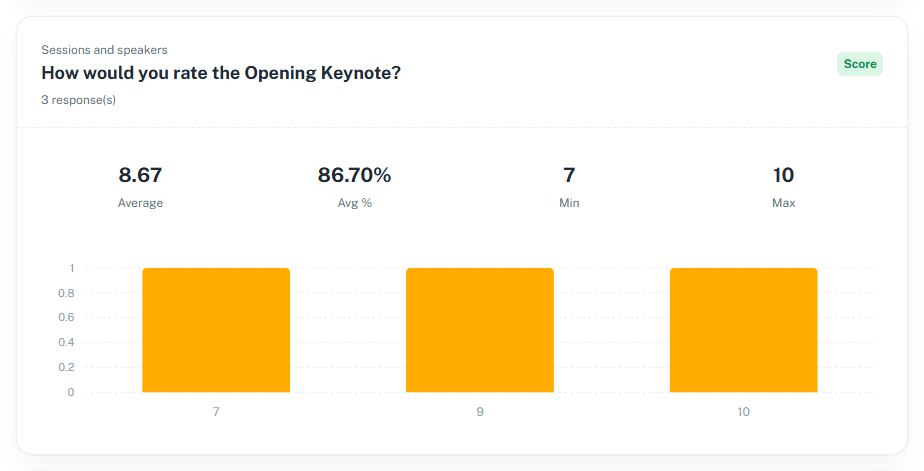
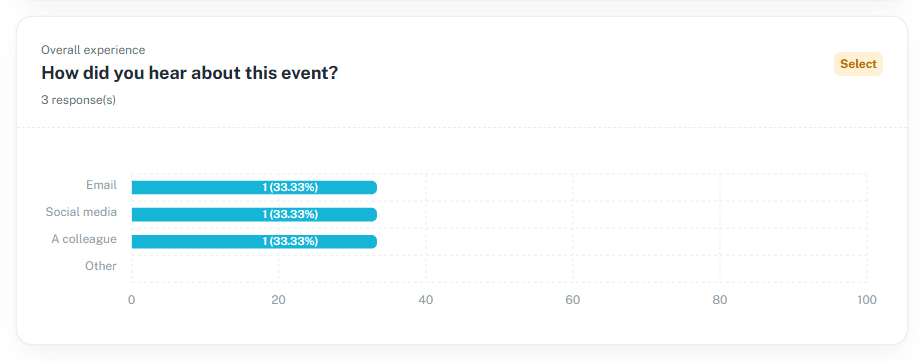
The report labels types slightly differently from the question builder: Free Text shows as Text, and Single Select as Select. The session or speaker a question is linked to isn't shown on the report, so put the session name in the question title if you need it there.
Download a PDF
Click Download PDF. You get an A4 PDF of the report as it is on screen: the five summary cards and every question card, with the date it was generated. The file is named after the evaluation, for example "Event Feedback.pdf".
Export to Excel
Click Export report to download an Excel file named after the evaluation, for example "Event Feedback.xlsx". You need the evaluations.export permission.
The workbook has:
- an Overview sheet with the evaluation's settings, eligible attendees, responded, response rate, and the number of groups and questions;
- one sheet per question, with its group, type, whether it's optional and the number of responses, followed by:
- Score: average, average %, min, max and a Score / Count table;
- Number: average, min, max and count;
- Text: every answer;
- Select / Multi Select / Checkbox: an Option / Count / Percentage table;
- "No answers submitted" if nobody answered it.
Both downloads show results without attendee names.