Manage evaluations
The Evaluations list
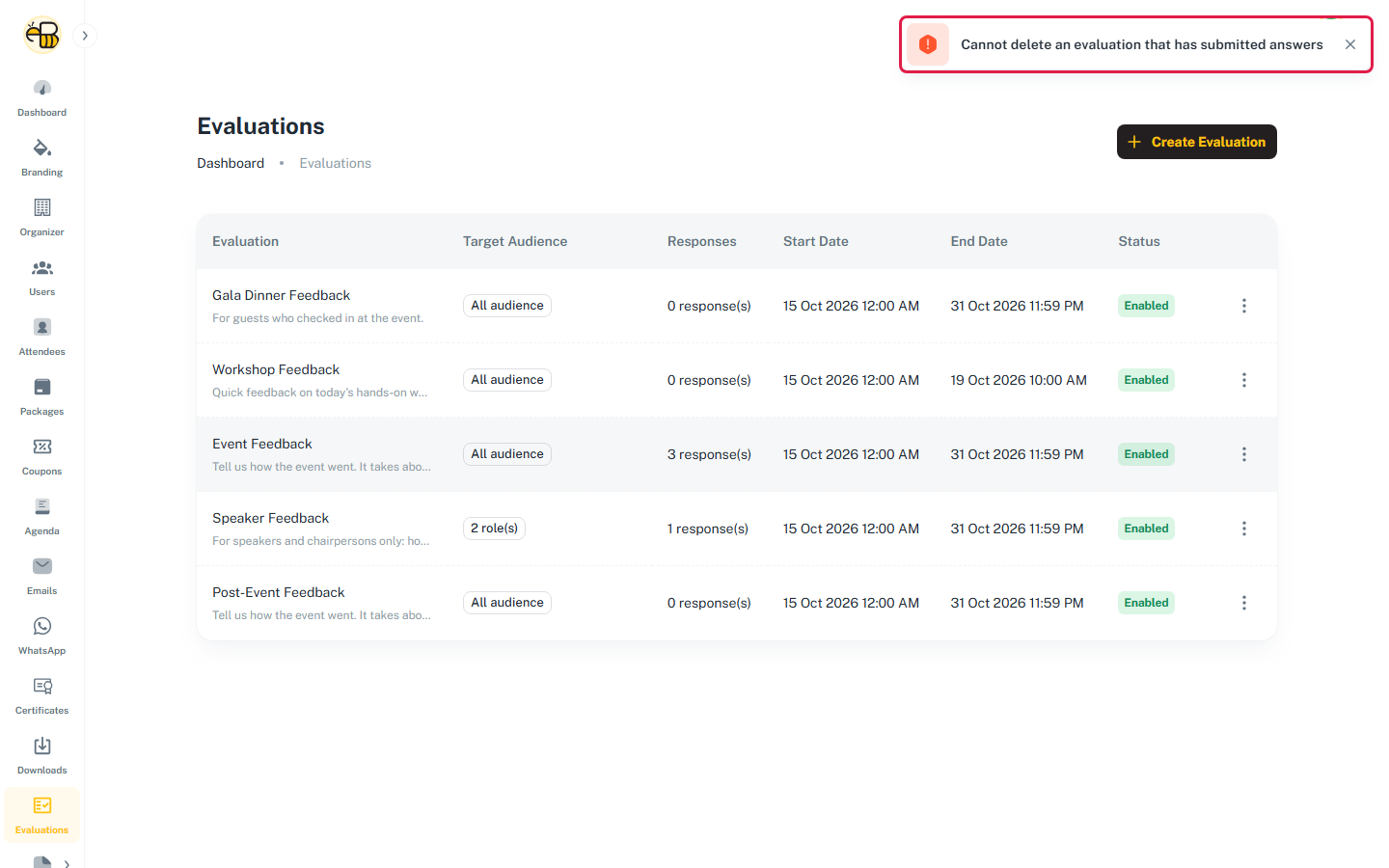
The list shows every evaluation in the event, newest first.
| Column | Shows |
|---|---|
| Evaluation | Title, with the description underneath. |
| Target Audience | All audience, or how many packages and roles it's aimed at, for example "2 role(s)". |
| Responses | How many attendees have answered at least one question. |
| Start Date / End Date | The schedule, or "-" if not set. |
| Status | Enabled or Disabled. |
Click ⋮ at the end of a row for its actions. Each one only appears if you have the permission for it.
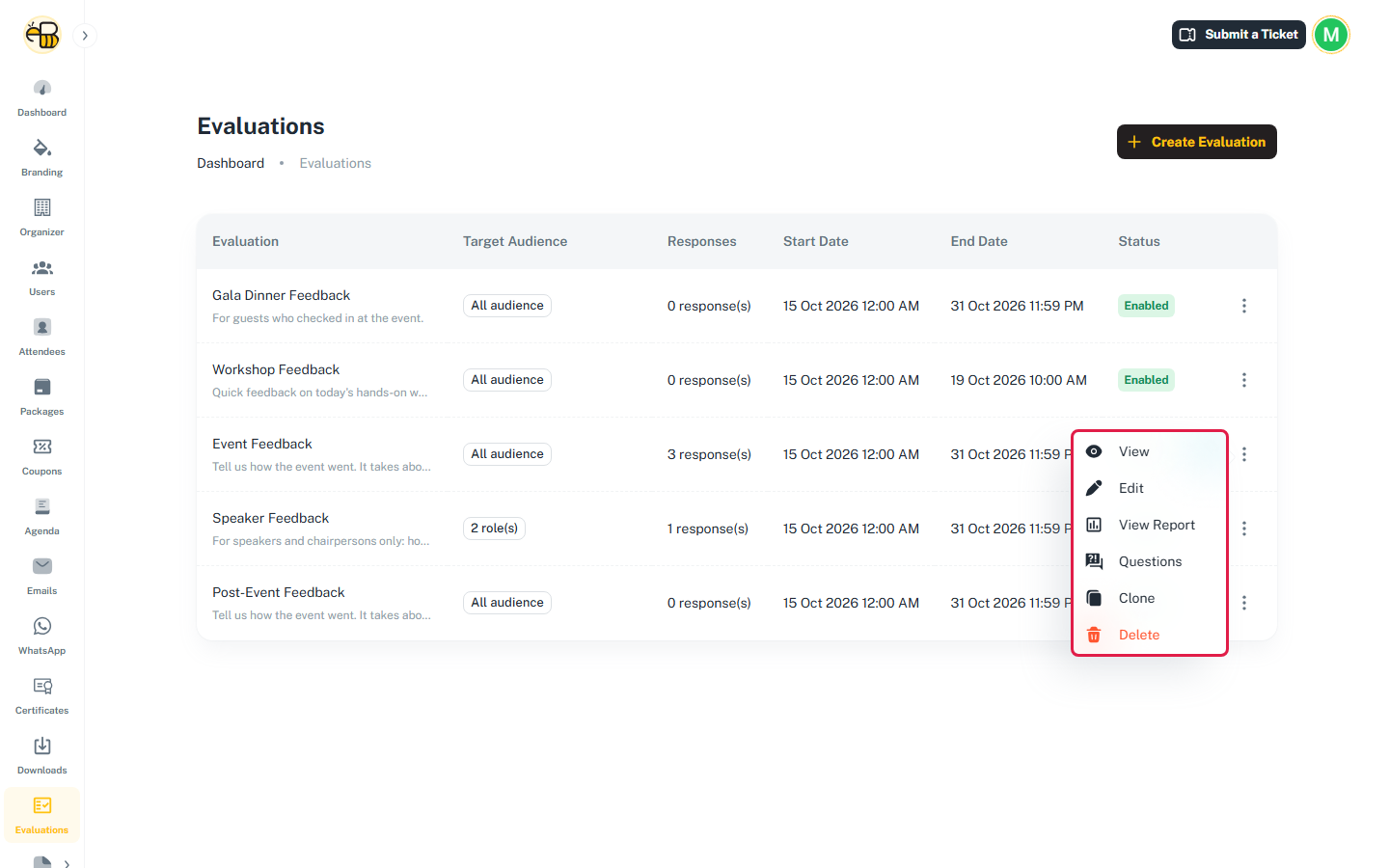
| Action | Opens |
|---|---|
| View | The evaluation's Overview |
| Edit | The settings form |
| View Report | The report |
| Questions | The question builder |
| Clone | A confirmation, then a copy of the evaluation |
| Delete | A confirmation, then deletes it |
Inside an evaluation
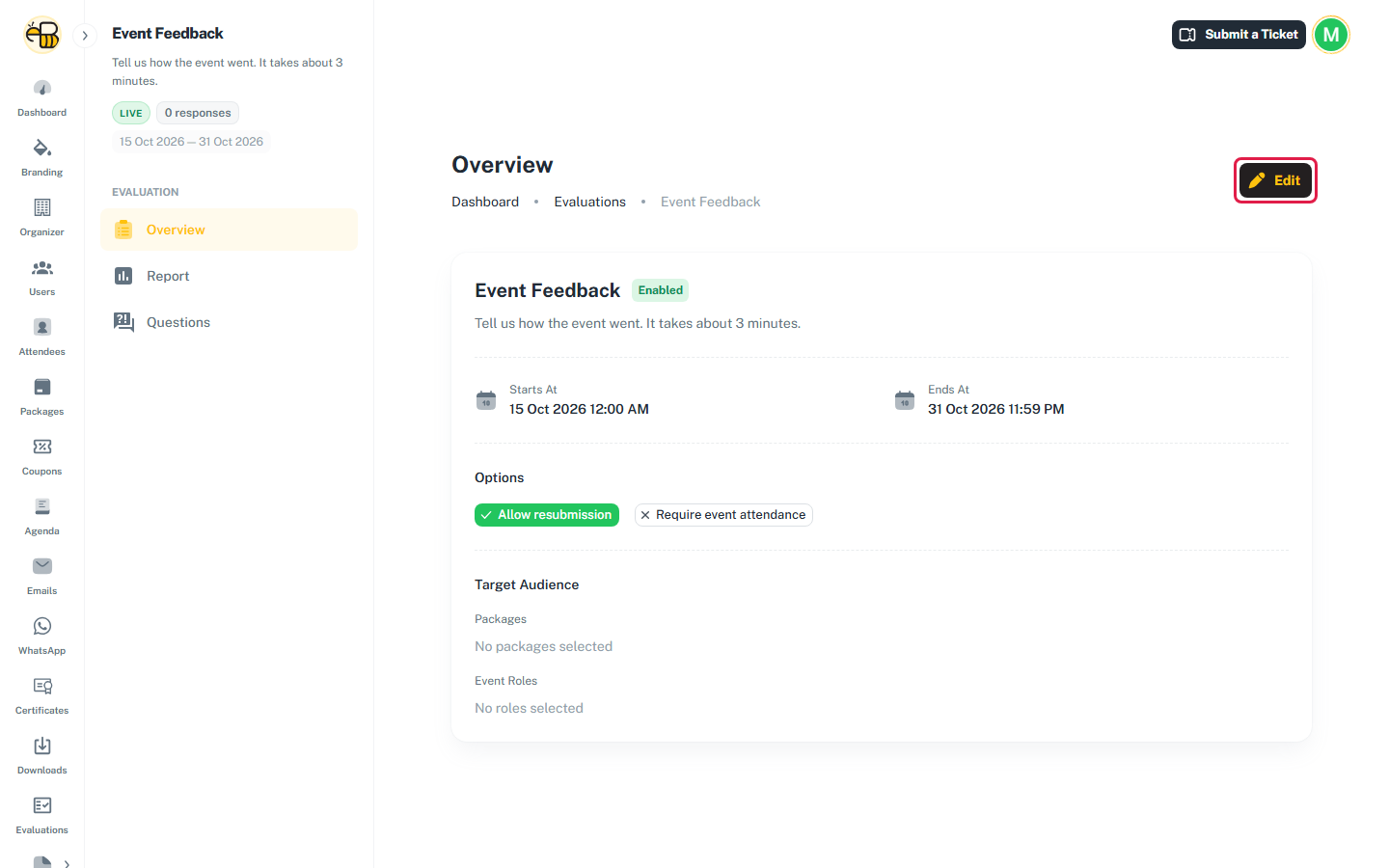
Opening an evaluation shows a side menu with Overview, Report and Questions. Above it, a summary shows the title, Live (enabled) or Paused (disabled), the number of responses and the dates.
Overview sums up the settings: the dates, which options are on (a green tick) or off (an ✕), and the target packages and roles. Click Edit to change them.
Edit an evaluation
Edit opens the same form as Create an evaluation. Change what you need and click Update.
You can edit the settings at any time, even after attendees have answered: title, description, dates, both options, target audience and the Enabled switch. Keep in mind:
- Narrowing the audience hides the evaluation from attendees who no longer match, but their answers stay in the report.
- Moving Ends At earlier closes it for everyone who hasn't submitted.
Questions are different: they're locked after the first response. See Questions are locked after the first response.
Turn an evaluation off
Edit it, switch off Enabled, and click Update. The status becomes Disabled and attendees no longer see it, including people who already answered (so they also lose access to its certificate card in the attendee portal). Its responses and report stay. Switch it back on to show it again.
Clone an evaluation
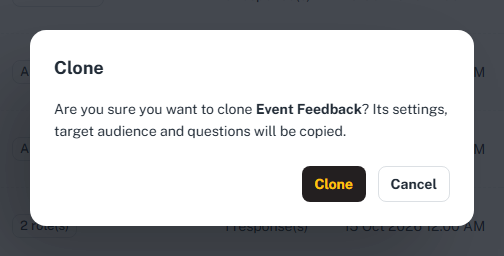
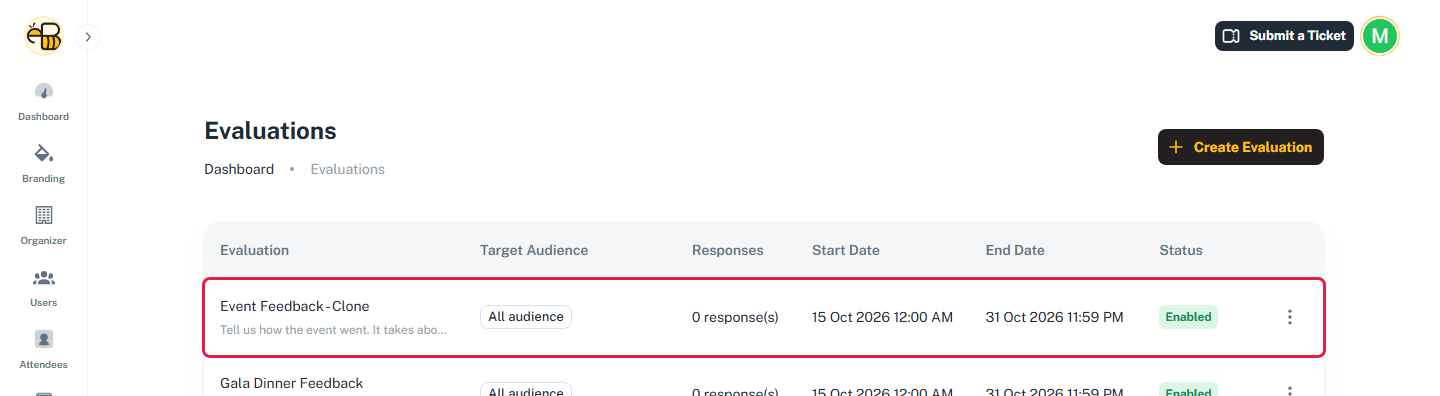
Clone asks you to confirm, then makes a copy called "original title - Clone".
The copy:
- includes the description, dates, options, target audience, question groups and questions (with their linked sessions and speakers);
- doesn't include any responses or the certificate link;
- is always Enabled, so if its dates are open, attendees can see it straight away. Edit its dates or switch it off first if you're not ready.
Cloning is how you reuse an evaluation for another day of the event, or change the questions after people have started answering.
Delete an evaluation
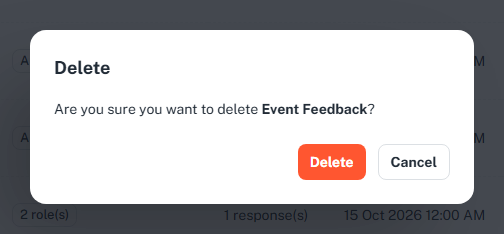
Delete asks "Are you sure you want to delete title?". Confirm with Delete.
You can only delete an evaluation that has no responses. Otherwise you'll see "Cannot delete an evaluation that has submitted answers". Turn it off instead.
Permissions
What you see depends on your dashboard permissions. Buttons and menu items you can't use are hidden. Opening a page you don't have access to takes you to a 403 page.
| To… | You need |
|---|---|
| See the Evaluations list and Overview | evaluations.view |
| Create or clone | evaluations.create |
| Edit settings, or save changes to questions | evaluations.update |
| Delete | evaluations.delete |
| See the Report | evaluations.report |
| Export the report to Excel | evaluations.export |
| Open the Questions page | evaluation-question-groups.view |
| Add, rename, reorder or delete groups | evaluation-question-groups.create, .update, .delete |
| Add, edit, reorder or delete questions | evaluation-questions.create, .update, .delete |
The Overview, Report and Questions links in the side menu are always shown. Clicking one you don't have permission for takes you to the 403 page.