Link a certificate
Linking an evaluation to a certificate means attendees get the certificate only after answering the evaluation. It's the most reliable way to get a high response rate.
How to link it
- In the sidebar, under Certificates, click Certificates.
- Click Add Certificate, or open an existing certificate to edit it.
- Make sure Type is Attendee. Only attendee certificates can be linked to an evaluation.
- Under Filters, choose the Roles and Packages the certificate is for, as usual.
- Under Settings, open Evaluation and choose the evaluation.
- Leave Draft off. A draft certificate isn't visible to attendees.
- Click Create (or save your changes).
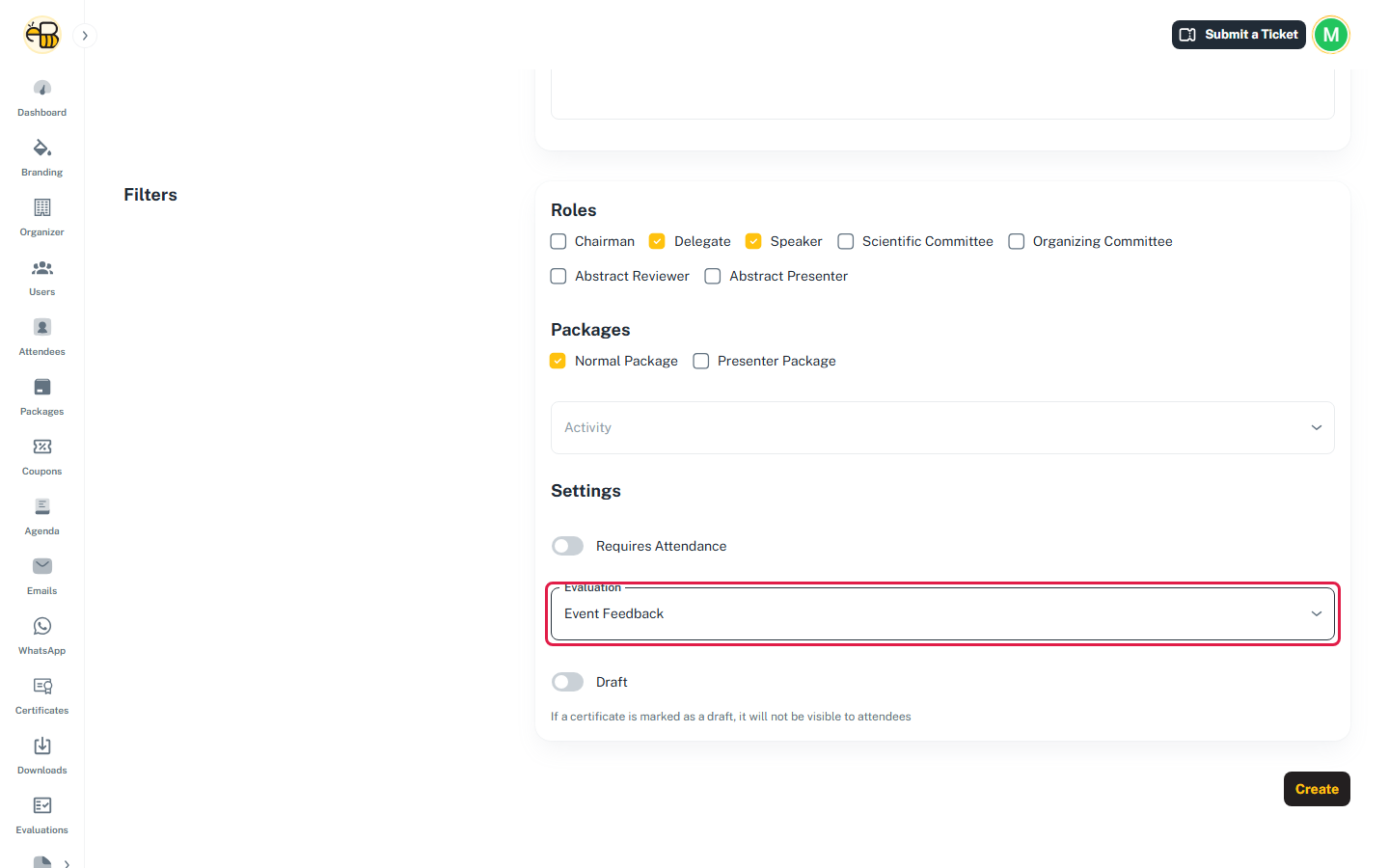
To unlink it, set Evaluation back to None.
Rules
- One certificate per evaluation. An evaluation that is already linked to another certificate can't be linked again.
- The attendee gets the certificate once they've answered every required question in the evaluation. Optional questions can be left empty.
- The certificate's own filters still apply. The attendee also needs to match one of the certificate's Roles and its Packages, and meet its Activity and Requires Attendance settings.
- If the certificate is tied to an Activity, only the required questions linked to that activity count.
- Make sure everyone who should get the certificate is also in the evaluation's target audience. If they can't see the evaluation, they can't answer it, and they won't get the certificate.
What attendees see
In the attendee portal, the certificate appears inside the evaluation:
- on the Thank you! page straight after submitting, with a Download Certificate button;
- at the top of their answers page whenever they open the evaluation again, with a Download button.
See Download your certificate. The certificate also appears under Certificates in the EventBeez mobile app.
note
The certificate card is always titled "Certificate of Attendance" in the attendee portal, whatever title you gave the certificate. The downloaded PDF file uses your certificate's title.