Create an evaluation
An event can have as many evaluations as you like, for example one general feedback form for everyone and a separate one for speakers.
Before you start
- You need the
evaluations.createpermission. Without it the Create Evaluation button doesn't appear. - If the event's grace period has expired, every Evaluations page shows Module Access Restricted. Settle the event's payments under Go to Billing to get access back.
- If you want to link questions to sessions or speakers, add those sessions and speakers to the Agenda first.
Open the form
- Open your event in the admin dashboard.
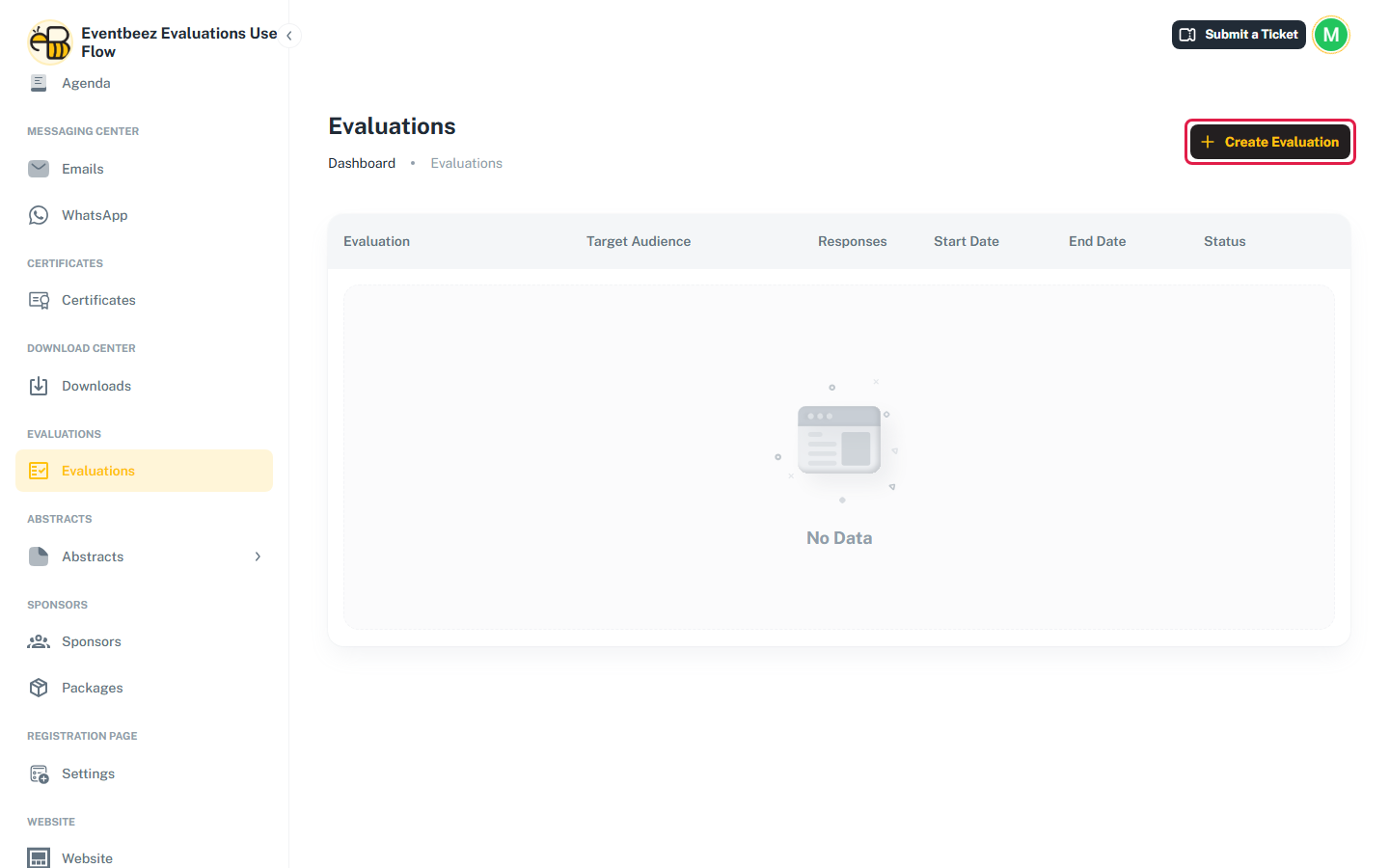
- In the sidebar, under Evaluations, click Evaluations.
- Click Create Evaluation.
Fill in the form
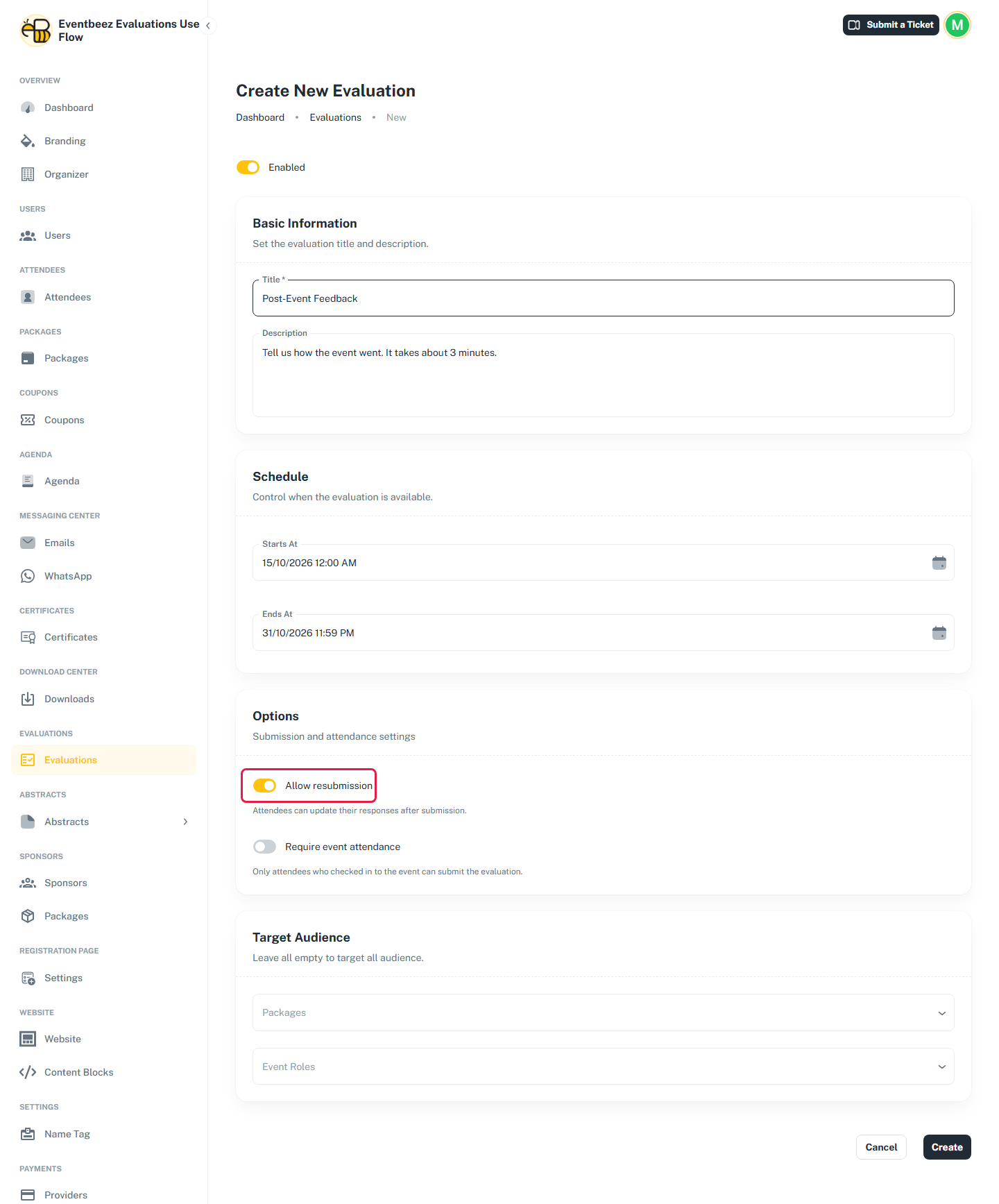
Enabled
The switch at the top. It's on by default. While it's off, attendees can't see the evaluation at all, including attendees who already answered it.
Basic Information
- Title (required, up to 255 characters). Attendees see it on the evaluation card.
- Description (optional). Shown under the title. A line on how long the form takes helps people start it.
Schedule
- Starts At and Ends At set when attendees can submit. Both are optional: leave one empty for no limit on that side.
- Ends At can't be earlier than Starts At.
- Times are in the event's time zone.
- Before the start, attendees don't see the evaluation. After the end, they can't submit, and only people who already answered still see it.
- In the last 24 hours, attendees see the evaluation marked Urgent with a countdown.
Options
| Option | Default | When it's on |
|---|---|---|
| Allow resubmission | Off | Attendees can open their answers, click Edit and resubmit, and submit again until the evaluation closes. The new answers replace the old ones. |
| Require event attendance | Off | Only attendees who have checked in at the event (been scanned in at least once) can see and submit the evaluation. |
Target Audience
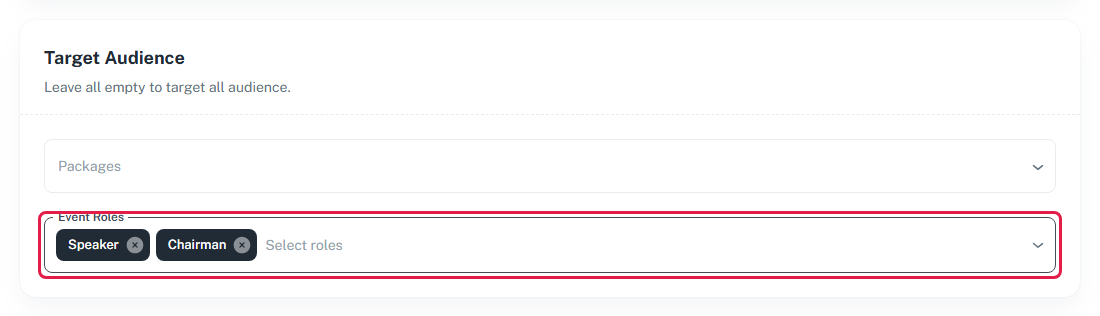
Leave both boxes empty to aim the evaluation at every attendee. Otherwise pick:
- Packages: the registration packages that should get it.
- Event Roles: the roles that should get it, such as Speaker or Chairman.
An attendee qualifies if their package or any of their roles is selected.
Save
Click Create. You'll see "Evaluation created successfully!" and return to the list. The evaluation has no questions yet, so open its Questions page next: see Build the questions.
You can create an evaluation and write its questions before the event, with Starts At set for when you want it to open. Attendees won't see it until then.