Build the questions
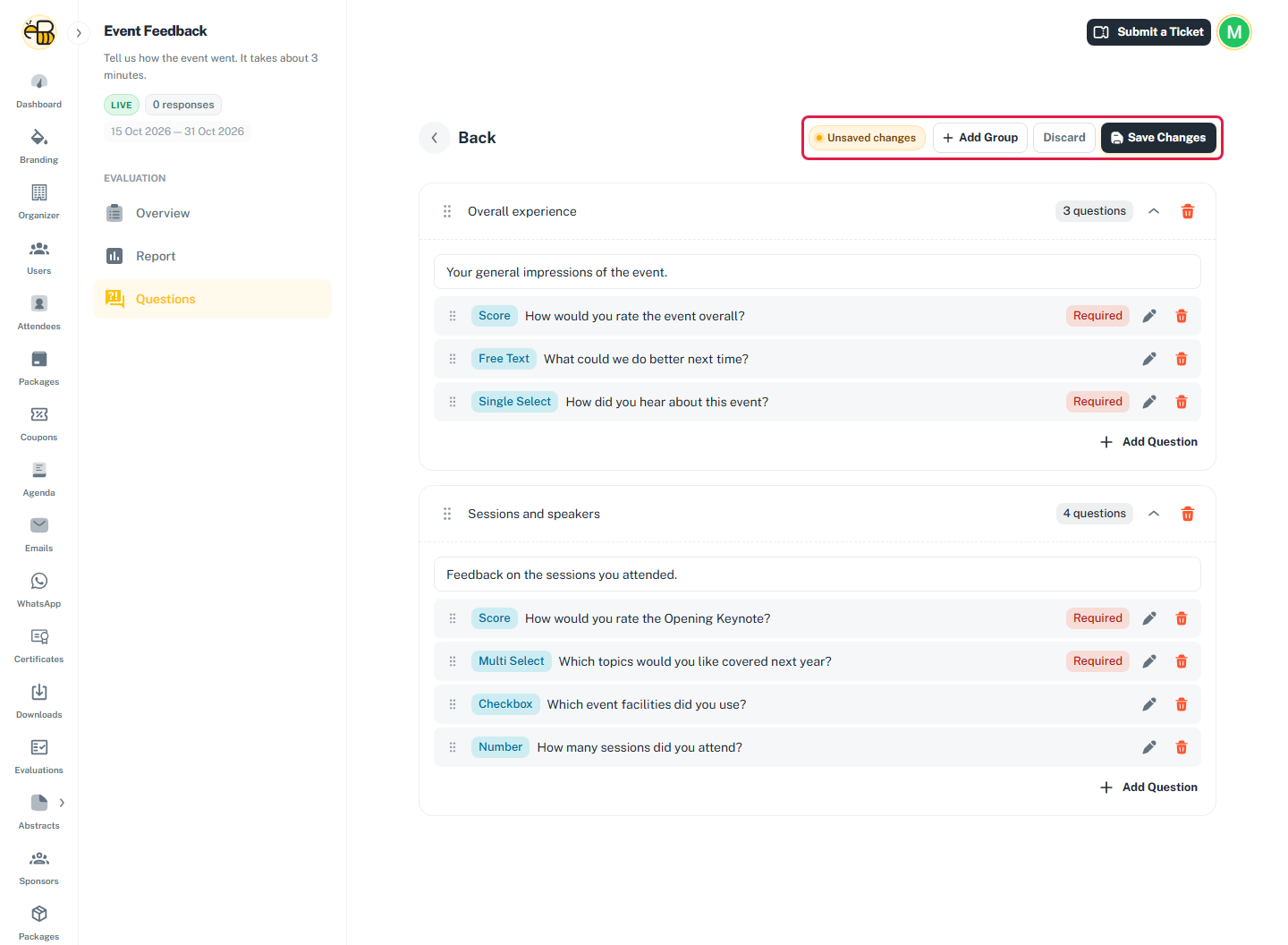
Questions are organized into groups. Each group is a card on the attendee's form with its own title and description, for example "Overall experience" and "Sessions and speakers".
Open the Questions page
In Evaluations, click ⋮ on the evaluation's row, then Questions. Or open the evaluation and click Questions in its side menu.
A new evaluation shows No question groups yet. Click Add Question Group to start.
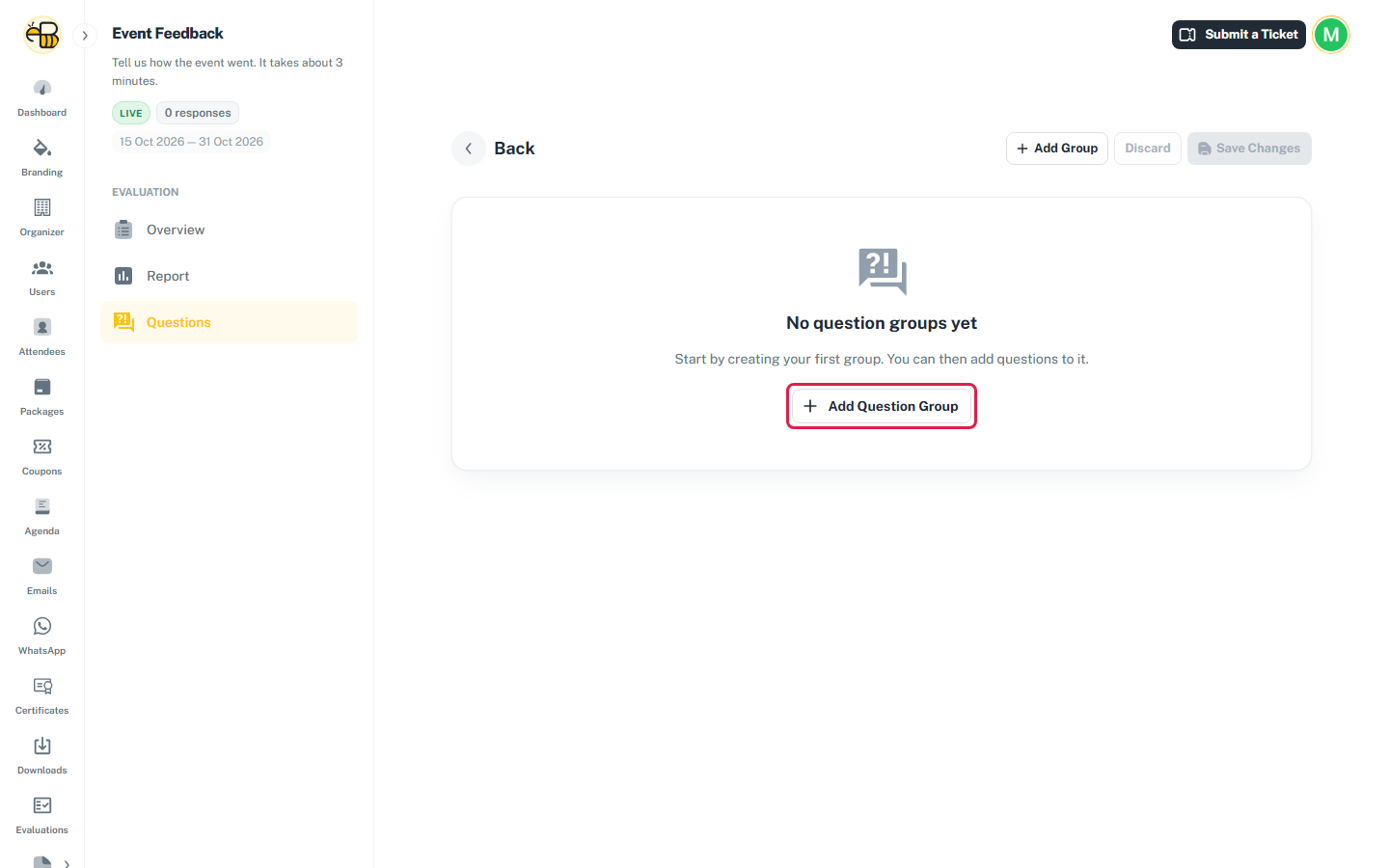
Adding, editing, deleting and reordering groups and questions only change the page. The bar at the top shows Unsaved changes until you click Save Changes. Discard undoes everything since the last save.
Groups
- Click Add Group for each group. New groups are called "New Group 1", "New Group 2" and so on.
- Click the title to rename the group, and type an optional description under it.
- Drag the handle on the left to reorder groups. The arrow collapses or expands a group.
- The red bin deletes the group and all its questions.
Add a question
Click Add Question at the bottom of a group, fill in the dialog, then click Add Question.
- Question Title (required, up to 255 characters).
- Question Type: see the table below.
- Optional: off by default, so every question is required unless you turn this on. Required questions show a red Required chip in the list and a * on the attendee's form.
Question types
| Type | The attendee answers with | Extra settings | In the report |
|---|---|---|---|
| Free Text | A multi-line text box | – | Every answer, listed |
| Number | A number field | – | Min, average and max |
| Score | A slider from 1 to the maximum | Maximum Score Value: attendees rate from 1 to this value | Average, average %, min, max and a bar chart of how many people gave each score |
| Single Select | Radio buttons (one choice) | Options, at least two | Count and % for each option |
| Multi Select | Checkboxes (several choices) | Options, at least two | Count and % for each option |
| Checkbox | Checkboxes (several choices) | Options, at least one | Count and % for each option |
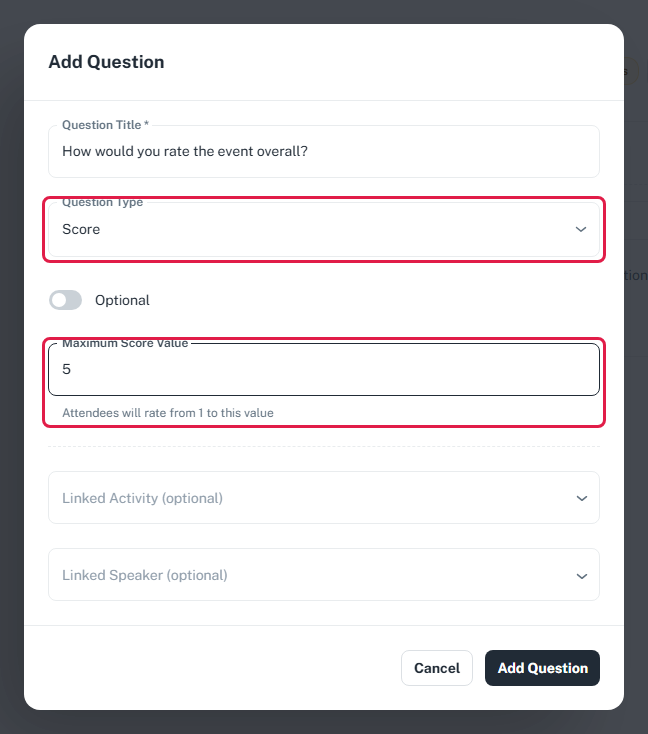
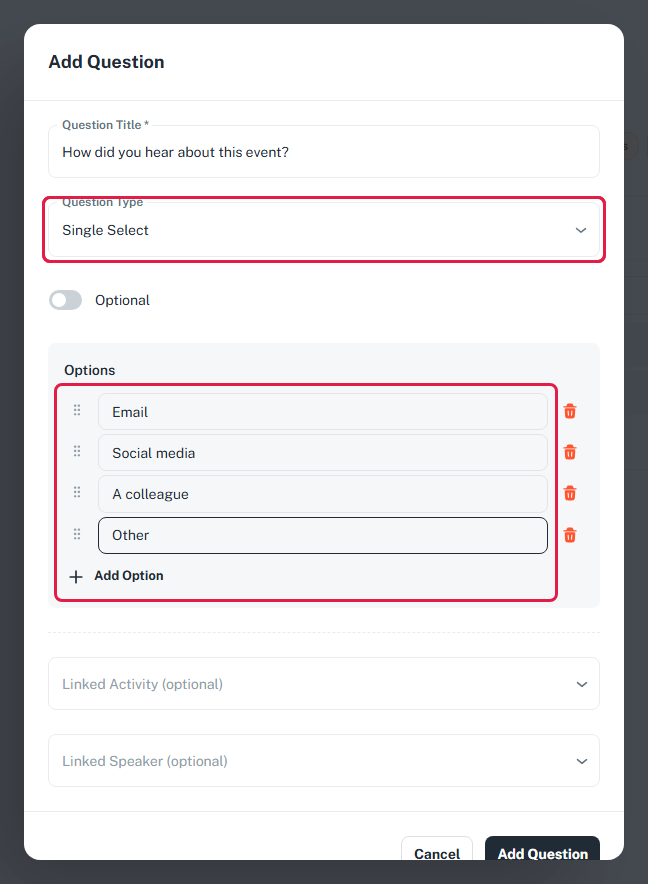
For Single Select, Multi Select and Checkbox, the dialog starts with "Option 1" and "Option 2". Type over them, click Add Option for more, drag the handles to reorder, and use the bin to remove one. Option names must be different from each other.
Link a question to a session or speaker
Both fields are optional.
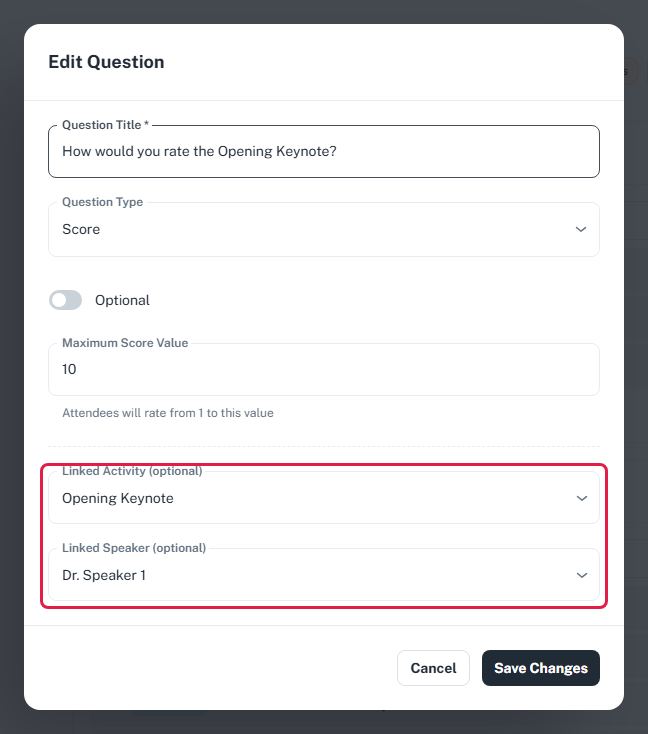
- Linked Activity (optional): pick a session from the event agenda.
- Linked Speaker (optional): pick a speaker. Once a session is chosen, only that session's speakers are listed.
Attendees see the session and speaker names above the question, so it's clear what they're rating. Use this for questions like "How would you rate the Opening Keynote?".
Edit, delete and reorder questions
- The pencil opens the question in the same dialog (Edit Question). Click Save Changes in the dialog.
- The red bin deletes the question after you confirm Delete Question.
- Drag the handle to reorder questions within their group. To move a question to another group, delete it and add it again there.
Save
Check the whole form, then click Save Changes. You'll see "Changes saved".
Questions are locked after the first response
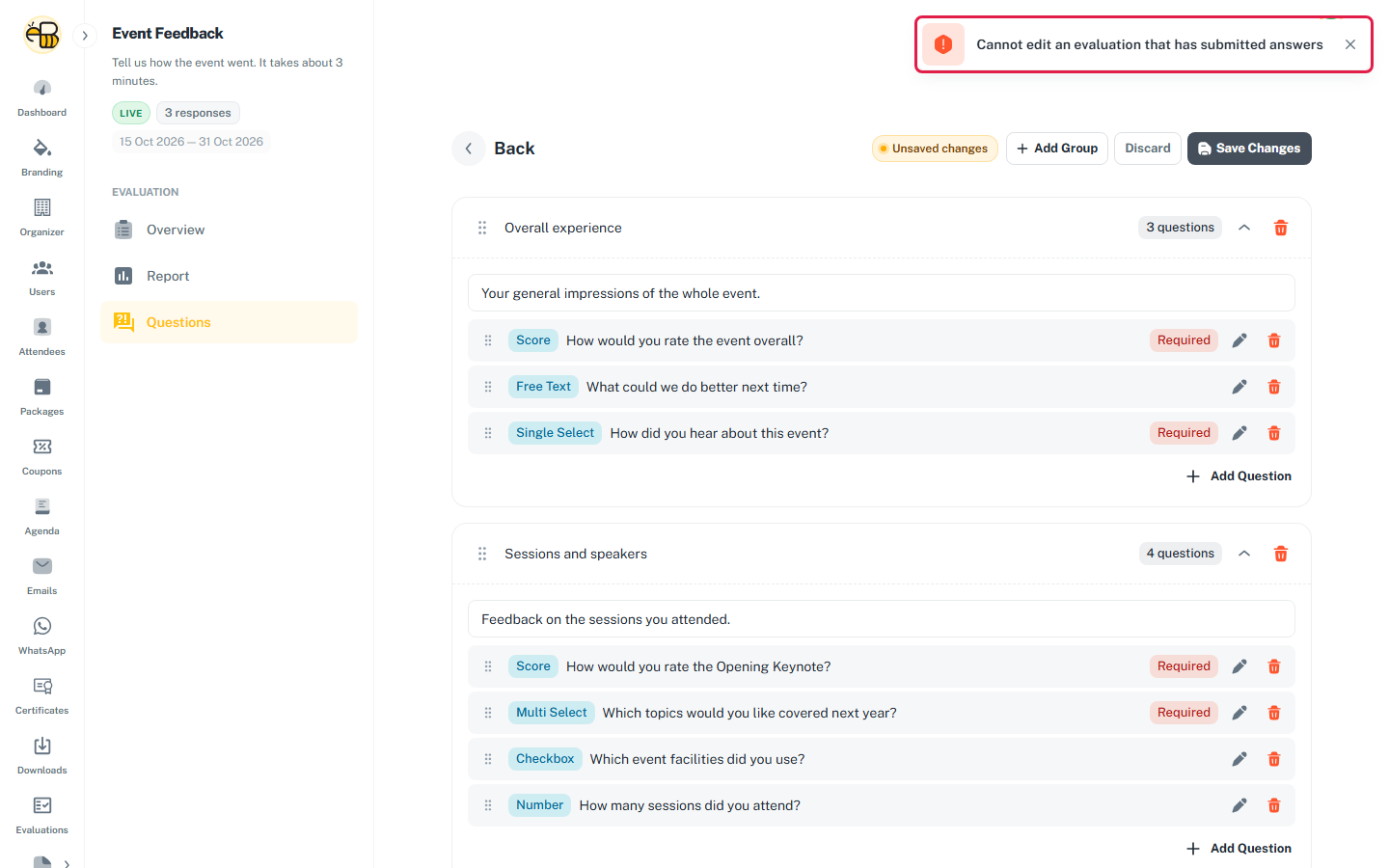
As soon as one attendee submits an answer, the questions can't be changed. Save Changes fails with "Cannot edit an evaluation that has submitted answers", and your edits aren't saved. Click Discard to clear them.
If you need different questions after people have started answering:
- Clone the evaluation. The copy has no responses, so its questions can be edited.
- Turn the original off (switch off Enabled) so attendees only see the new one.
The answers already given to the original stay in its report.
A test answer counts as a response and locks the questions too. To try the form out, clone the evaluation, answer the copy with a test attendee account, then turn the copy off. Once it has an answer it can't be deleted.