See and change your answers
See your answers
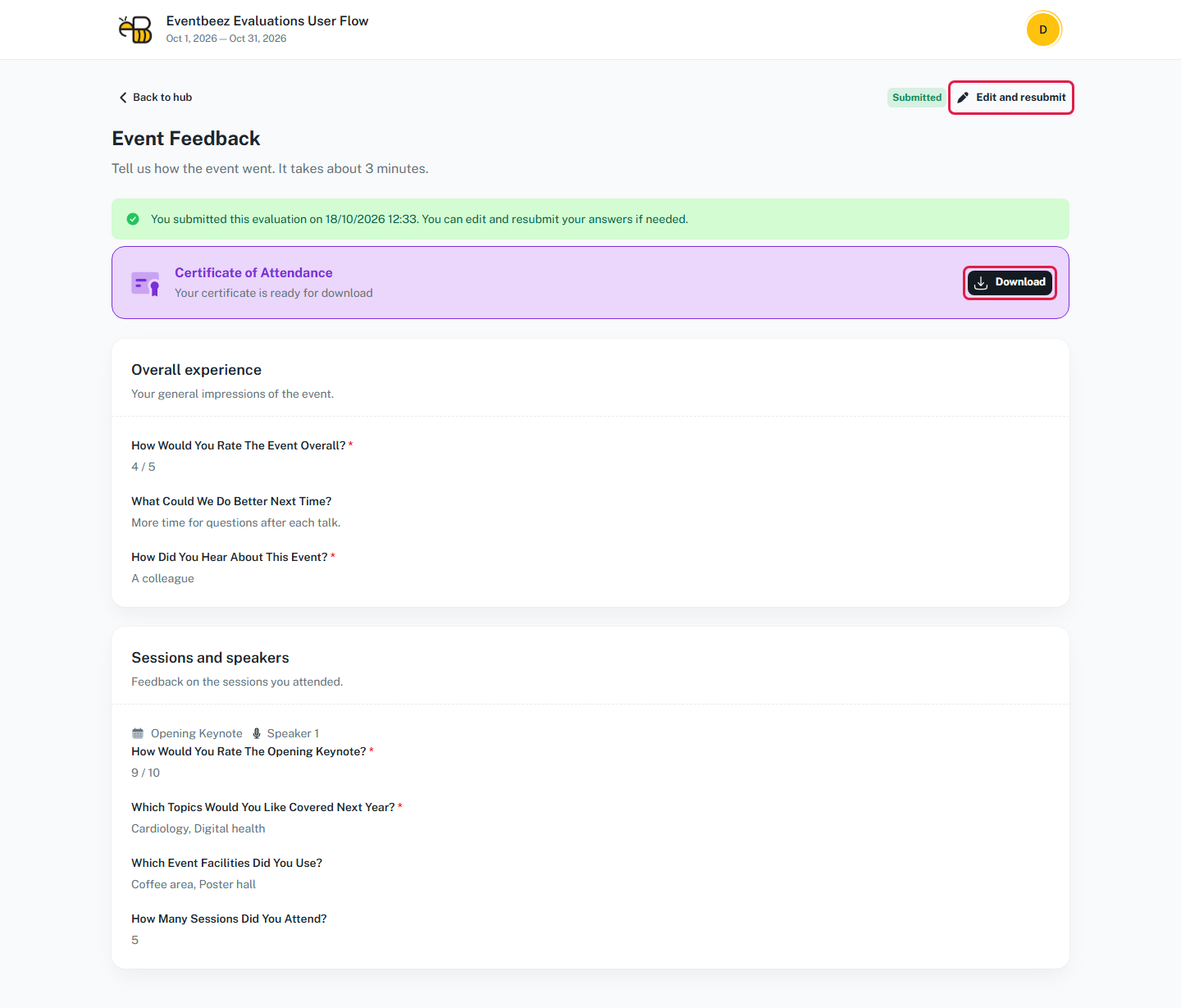
In Evaluations, click a card marked Submitted. You'll see:
- the date and time you submitted;
- your certificate, if the evaluation has one;
- each of your answers. Scores show as, for example, "4 / 5", and choices are listed by name.
Change your answers
You can change your answers only if the card says Resubmission allowed and the evaluation hasn't closed yet.
- Open the evaluation from Evaluations.
- Click Edit and resubmit at the top right.
- The form opens with your previous answers filled in. Change what you need.
- Click Submit evaluation.
Your new answers replace the old ones. The organizer only sees your latest answers.
When you can't change your answers
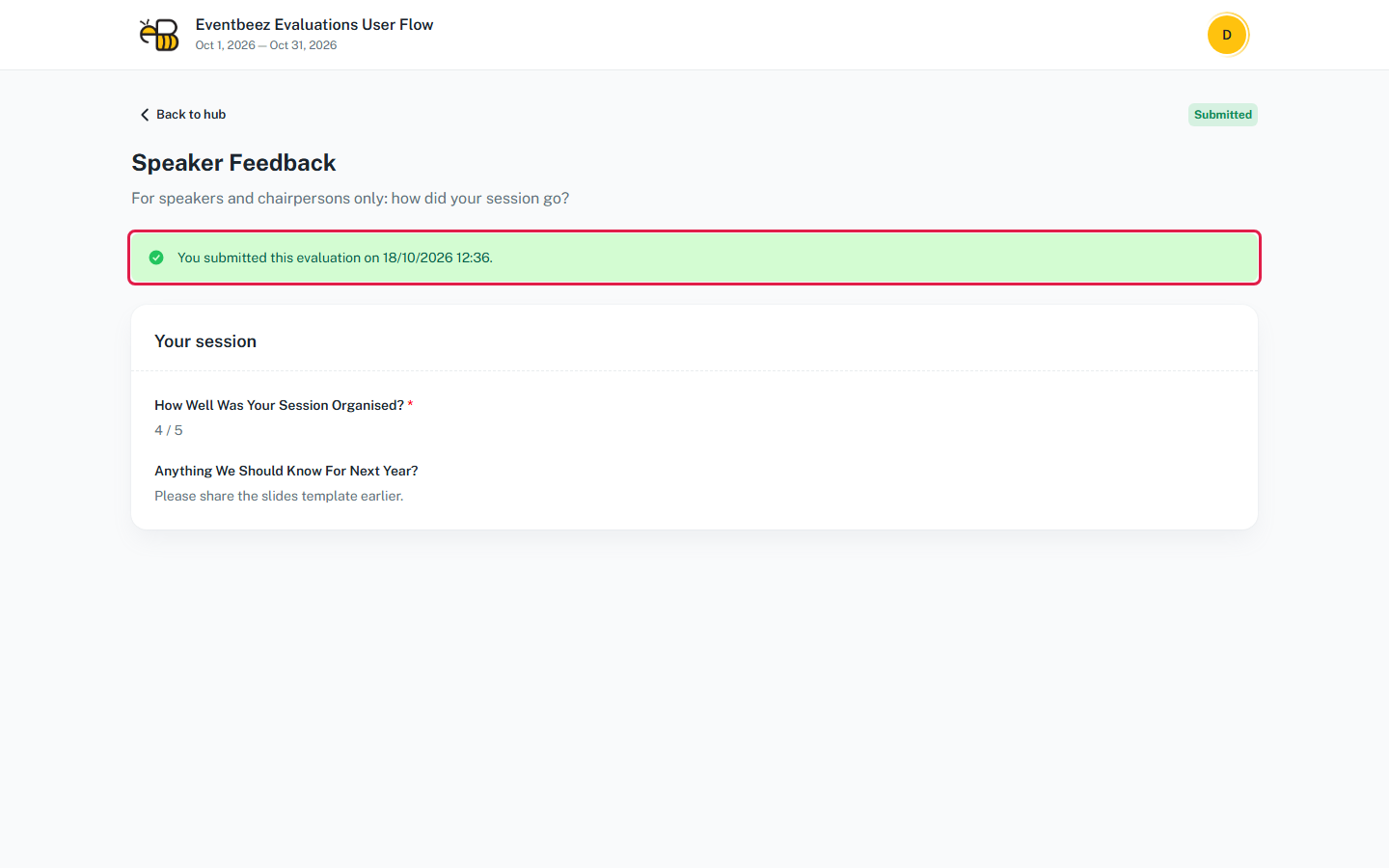
If the organizer didn't allow resubmission, your answers page has no Edit and resubmit button and only says when you submitted. Your answers are final. Contact the organizer if you made a mistake.
After the evaluation closes, you can still open it from Evaluations to read your answers and download your certificate, but you can't change anything.