Answer an evaluation
Find your evaluations
- Sign in to the event's attendee portal.
- On your dashboard, click Evaluations ("Submit event evaluations").
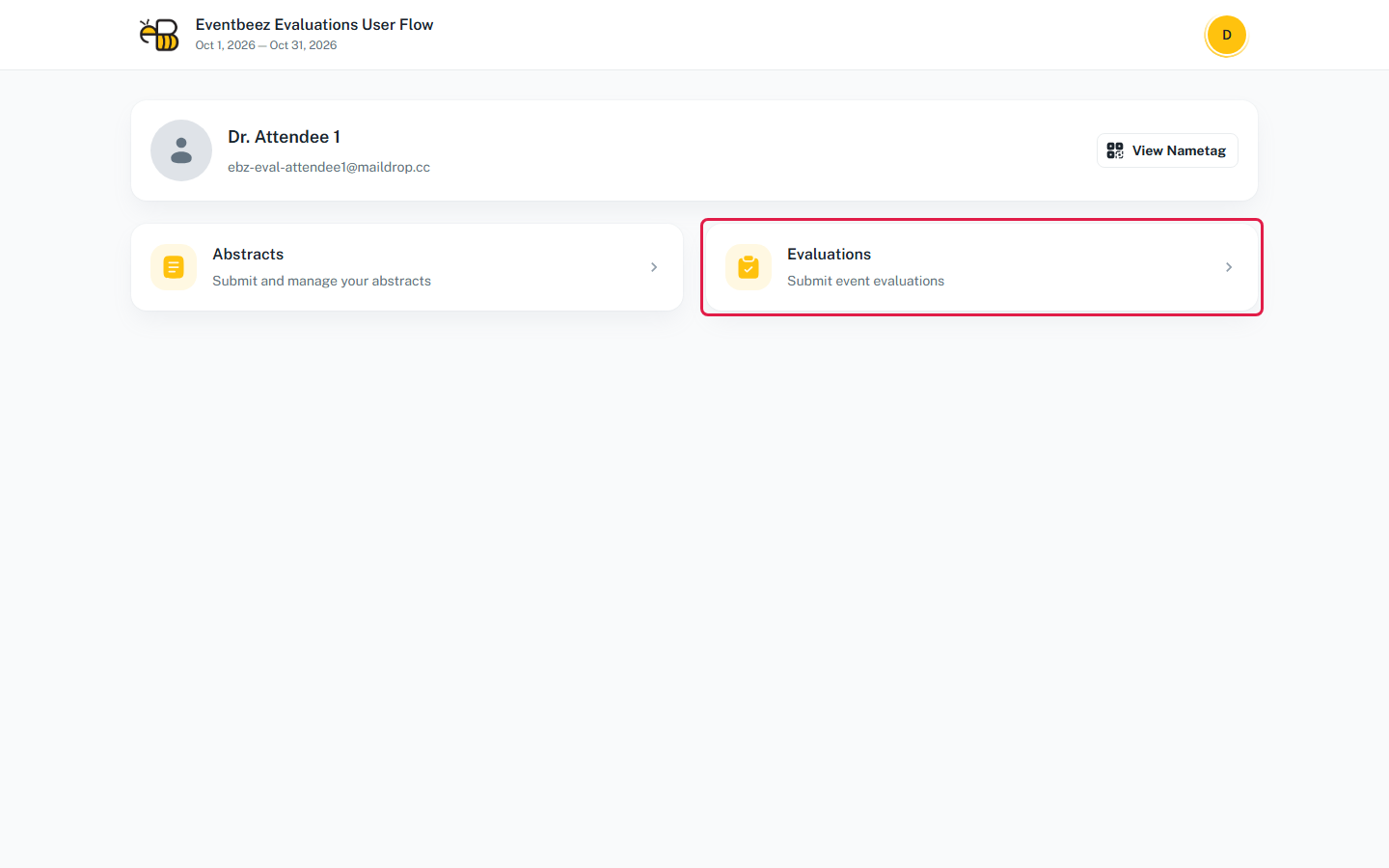
You only see evaluations that are open now and meant for you. If there's no Evaluations card at all, no evaluation is available to you right now. See Who sees an evaluation and when.
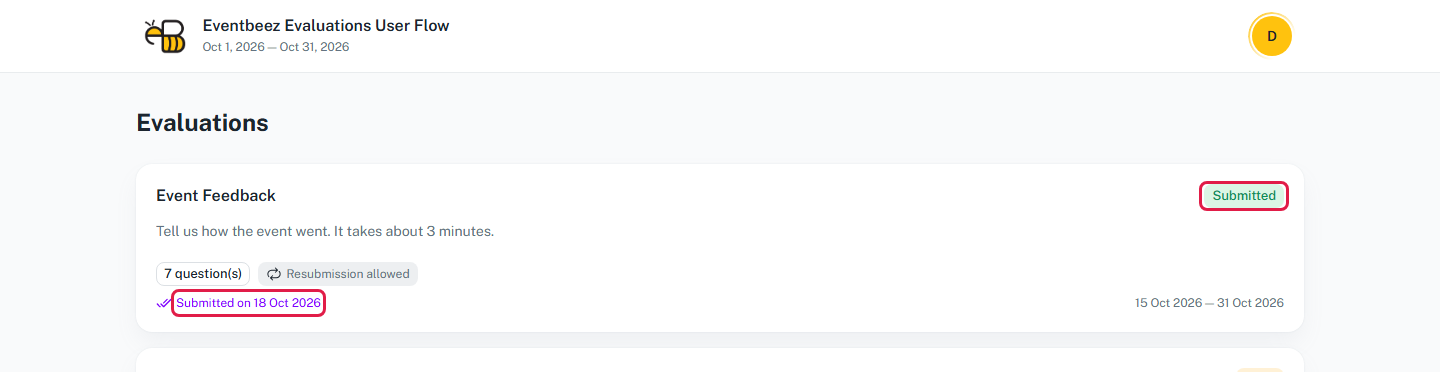
Each evaluation is a card with its title, description, number of questions and dates.
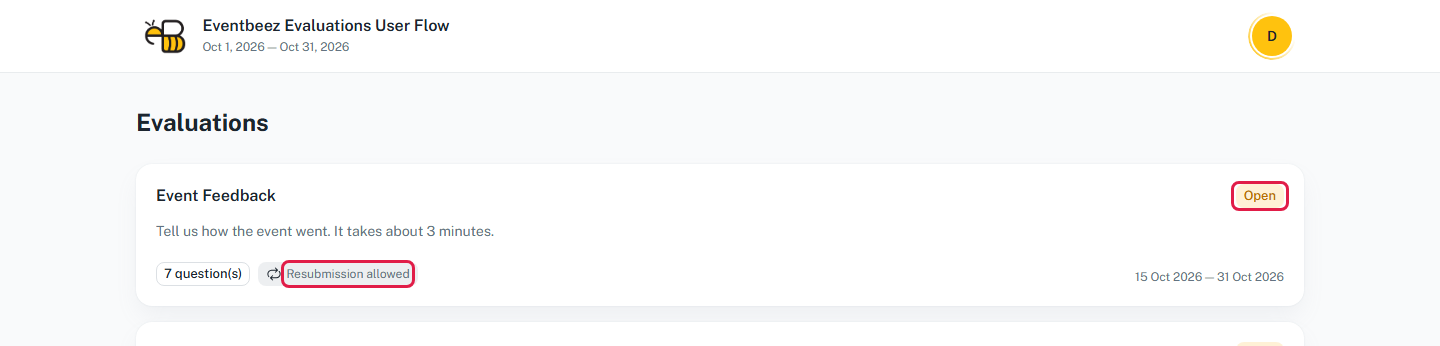
| On the card | Meaning |
|---|---|
| Open | You haven't answered it yet. |
| Urgent with expires in time | It closes in less than 24 hours. |
| Submitted with Submitted on date | You've answered it. Click to see your answers. |
| Resubmission allowed | You can change your answers after submitting. |
Fill in the form
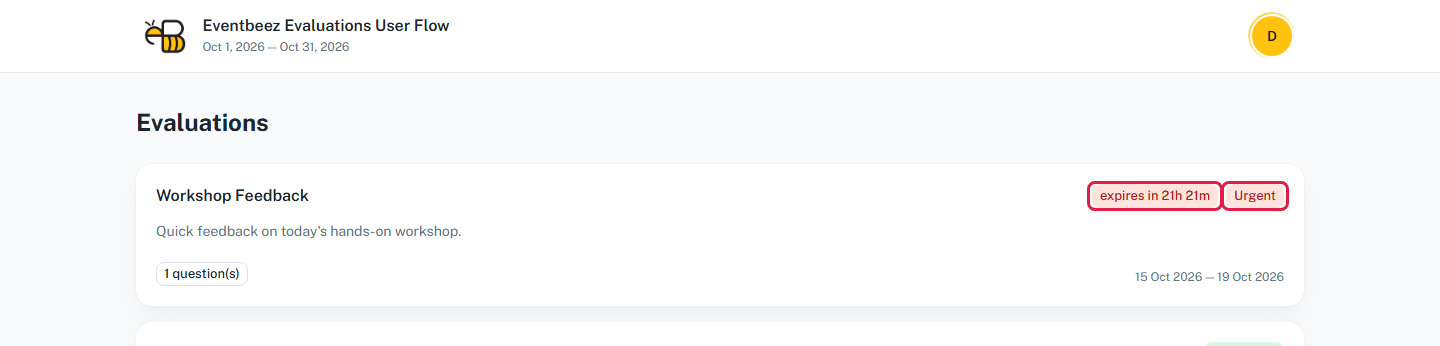
Click a card to open the form. Questions are grouped into cards. Questions with a * are required. The others you can skip.
Some questions are about a particular session or speaker. Their names appear just above the question, next to a calendar and a microphone icon.
| Question looks like | How to answer |
|---|---|
| A slider with numbers | Click or drag the slider to your score. |
| A text box | Type your answer. |
| Round buttons | Pick one option. |
| Square boxes | Tick as many as apply. |
| A number field | Type a number. |
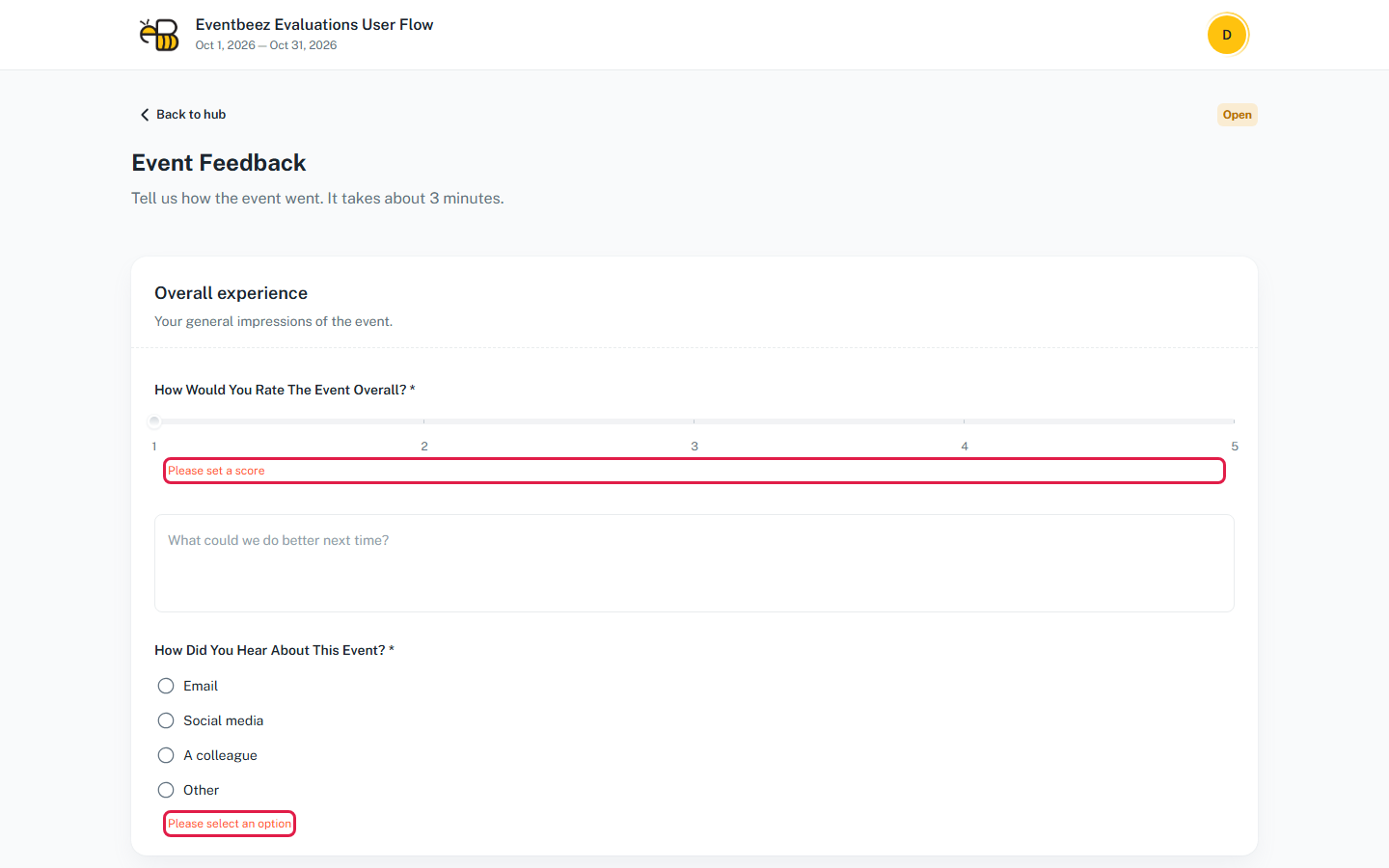
Before you touch it, a score slider sits at the left end, but it has no value yet. Click or drag it, even if you want the lowest score. Otherwise you'll see "Please set a score".
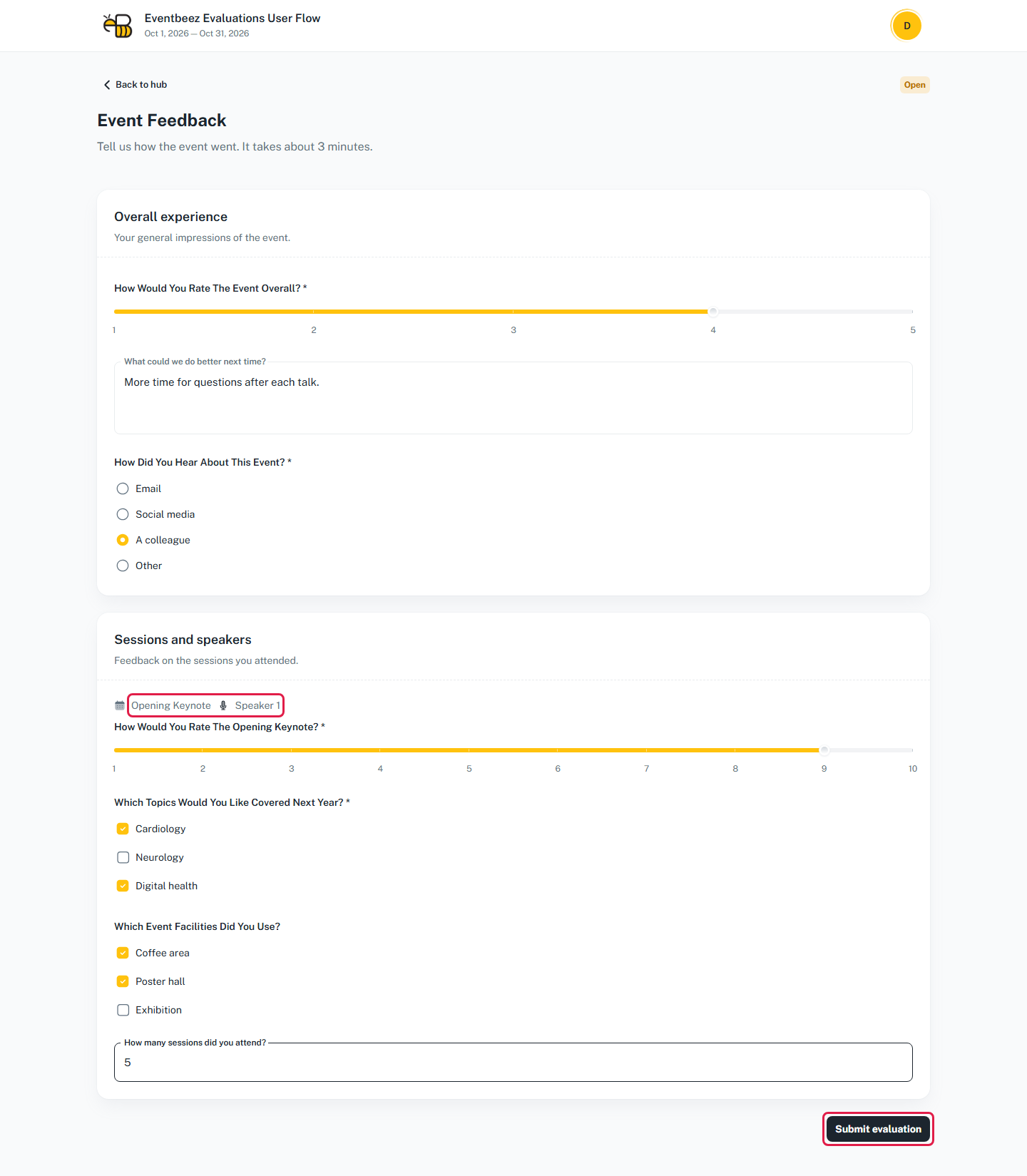
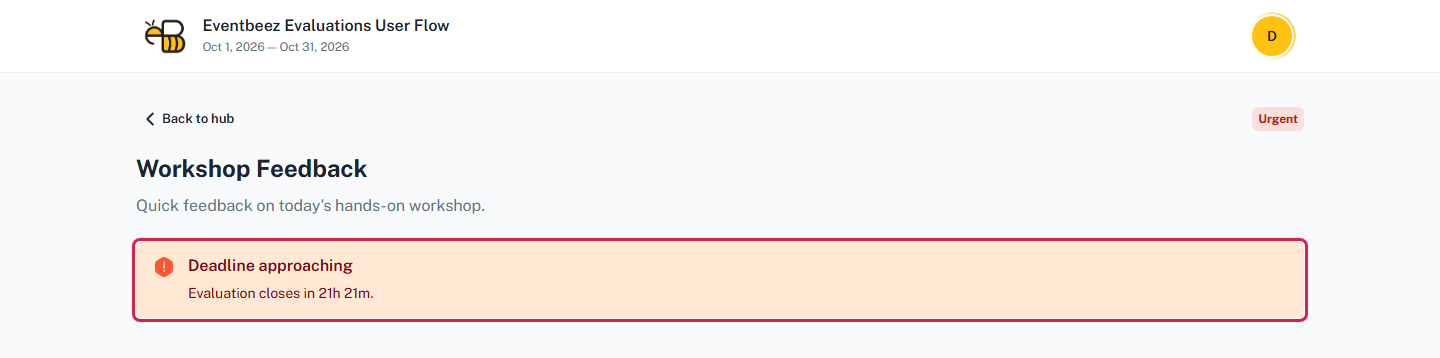
If the evaluation closes in less than 24 hours, a Deadline approaching box at the top shows how long you have left.
Submit
Click Submit evaluation at the bottom.
If a required question is empty, the form doesn't send, and a red message appears under each question you missed:
| Message | Fix |
|---|---|
| Please set a score | Click or drag the slider. |
| Please select an option | Choose one of the round buttons. |
| Select at least one option | Tick at least one box. |
| This field is required | Type an answer. |
| Enter a valid number | Type a number. |
When it goes through, you see "Submitted evaluation successfully" and a Thank you! page. If the evaluation has a certificate, you can download it right there: see Download your certificate.
Click Back to evaluations to return to the list, where the card now says Submitted.
Using the mobile app
You can also answer from the Evaluation tile in the EventBeez mobile app, with these differences:
- The app shows only one evaluation per event: the first one the organizer created. Use the attendee portal for any others.
- You answer and submit one question group at a time. Each group shows Answered or Not Answered.
- The app doesn't show deadlines or the session and speaker names on questions.
- Your certificates are under the Certificates tile.