Submit an abstract
- On your home page, click Abstracts. This opens My Submissions.
- If the organizer provided guidelines, read them first under Submission Guidelines.
- Click Submit New Abstract.
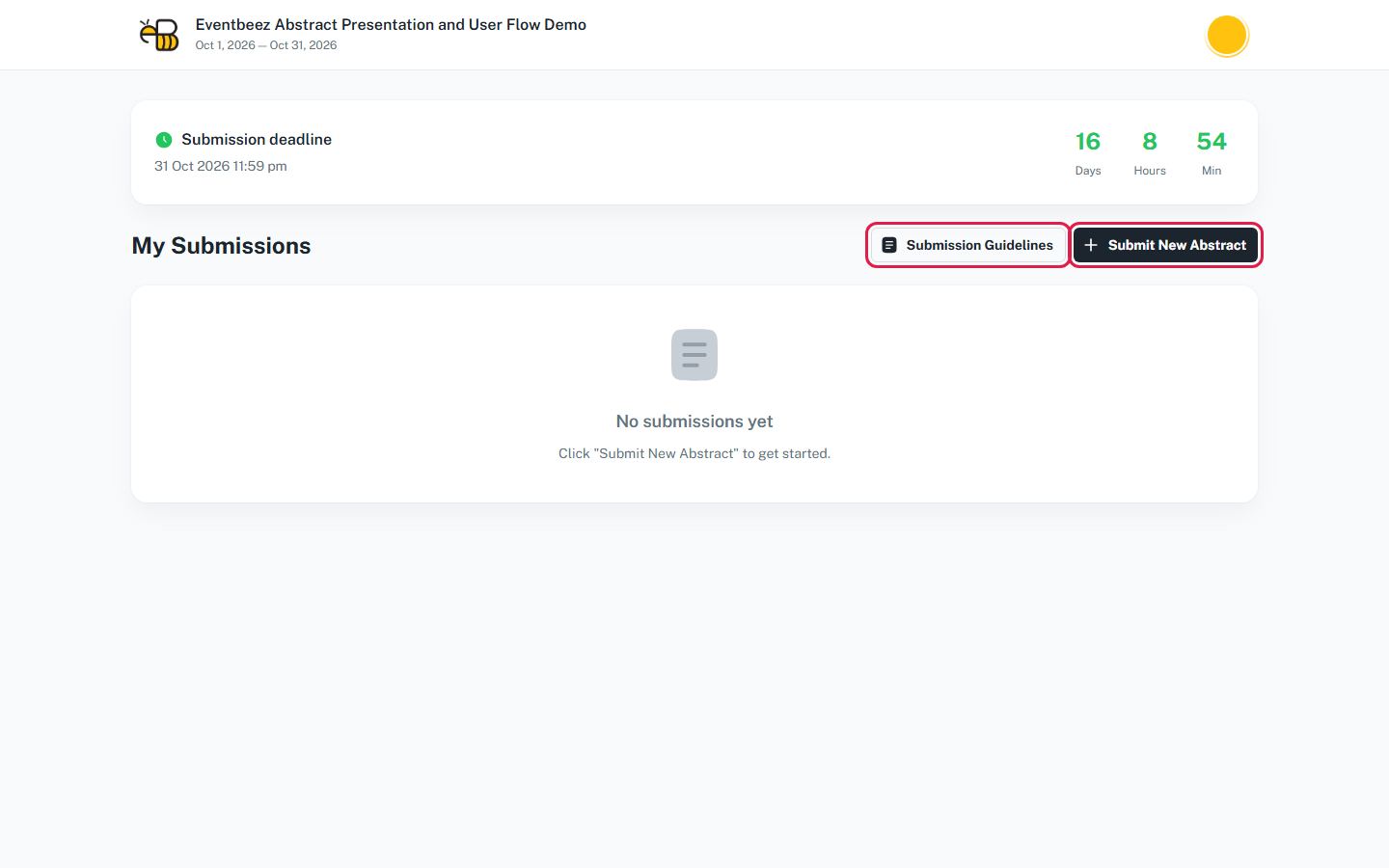
If you don't see Submit New Abstract, submissions aren't open. See Why can't I submit?.
The form has up to four steps: Title & Authors, Content, Questions (only if the organizer added questions) and Review & Submit.
Your progress is saved as you go
There's no "Save draft" button. Each time you press Next, that step is saved. If you leave halfway, your abstract stays in My Submissions as a Draft, and you can carry on later from Edit.
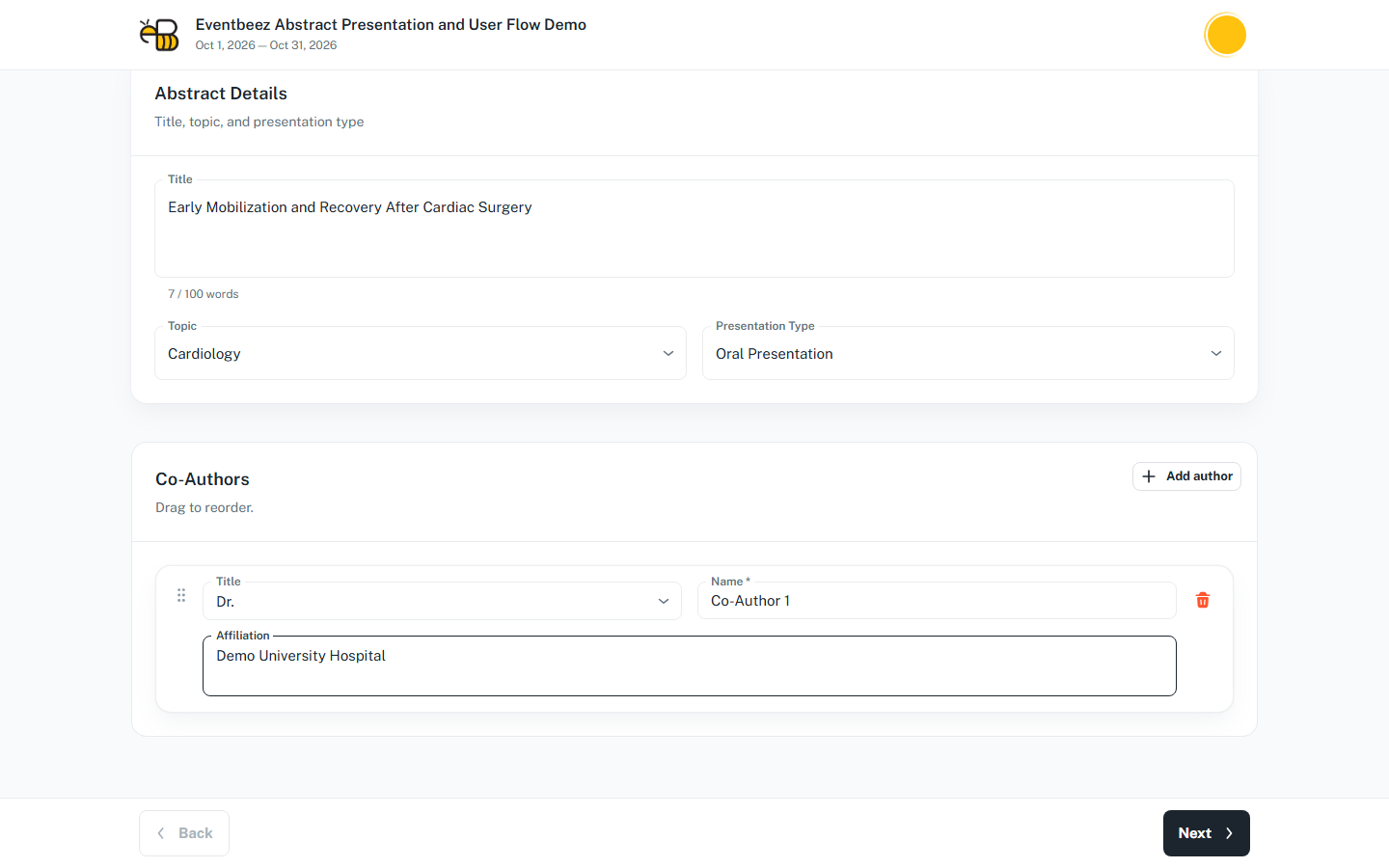
Step 1 – Title & Authors
- Title – the counter shows how many words you've used out of the limit.
- Topic and Presentation Type – choose carefully. You can't change either once you press Next. To use a different one, start a new abstract.
- Co-Authors – click Add author for each co-author, with their title, name and affiliation. Drag to reorder them.
You're automatically the presenting author, marked with *. Don't add yourself as a co-author.
Pressing Next here creates your draft.
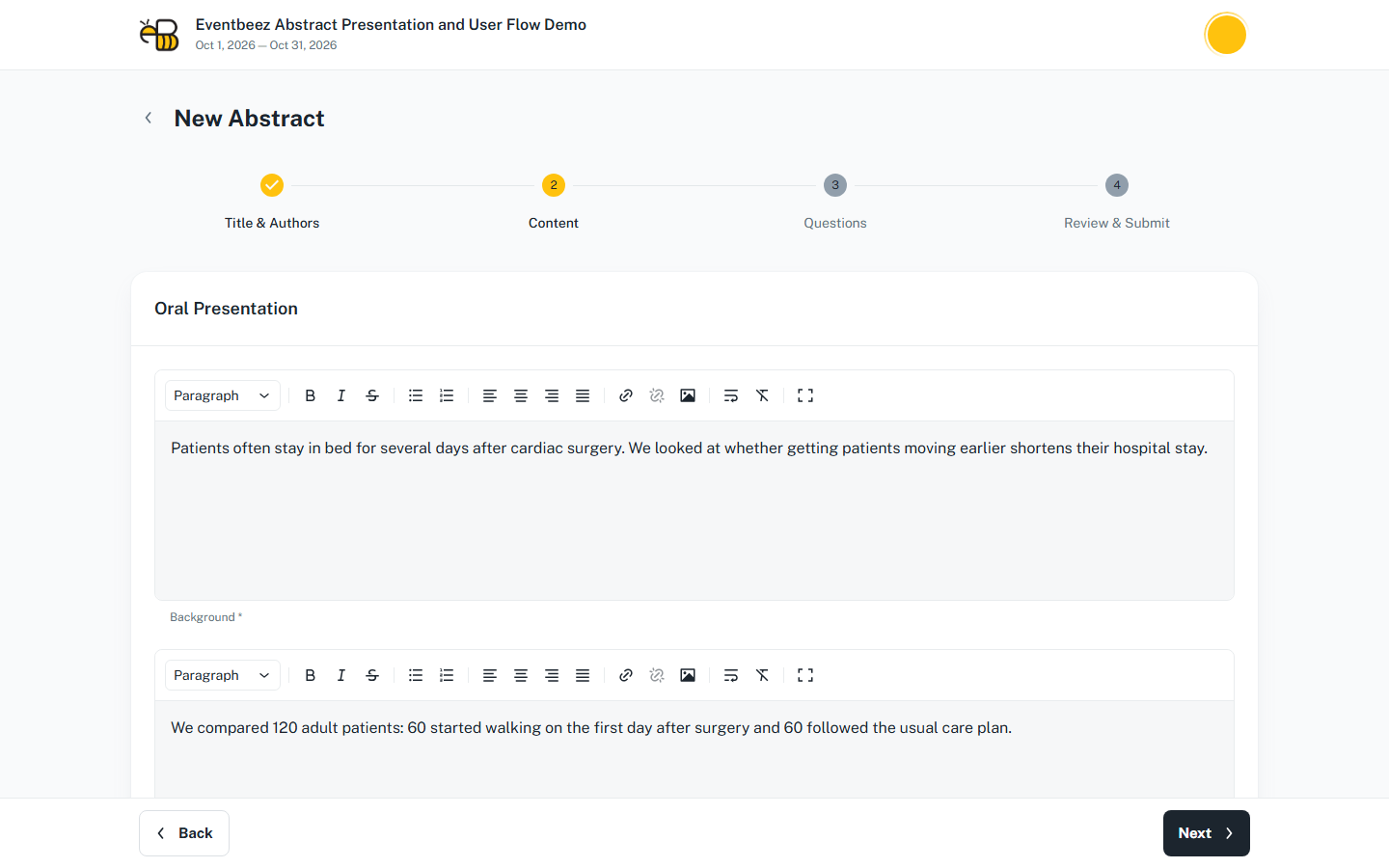
Step 2 – Content
These fields depend on the presentation type you chose, for example Background, Methods or Results, or a file upload.
- Word counters show the minimum and maximum words for each field.
- Uploaded files must be one of the allowed types and 5 MB or smaller.
- Keywords, Acknowledgment and References appear only if the organizer turned them on. When Acknowledgment or References appear, you must fill them in.
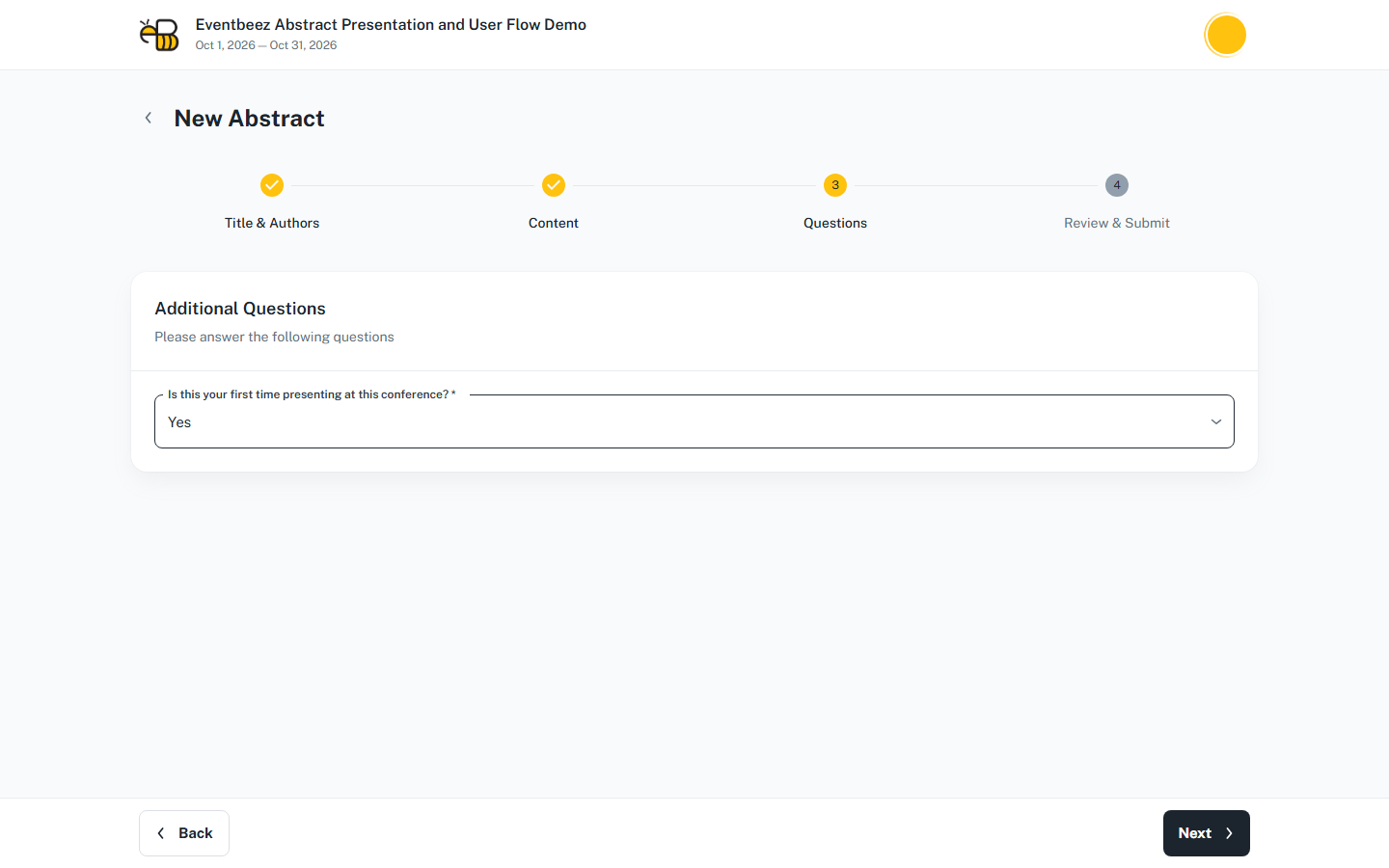
Step 3 – Questions
Answer the organizer's additional questions. Required ones must be answered before you can submit.
Step 4 – Review & Submit
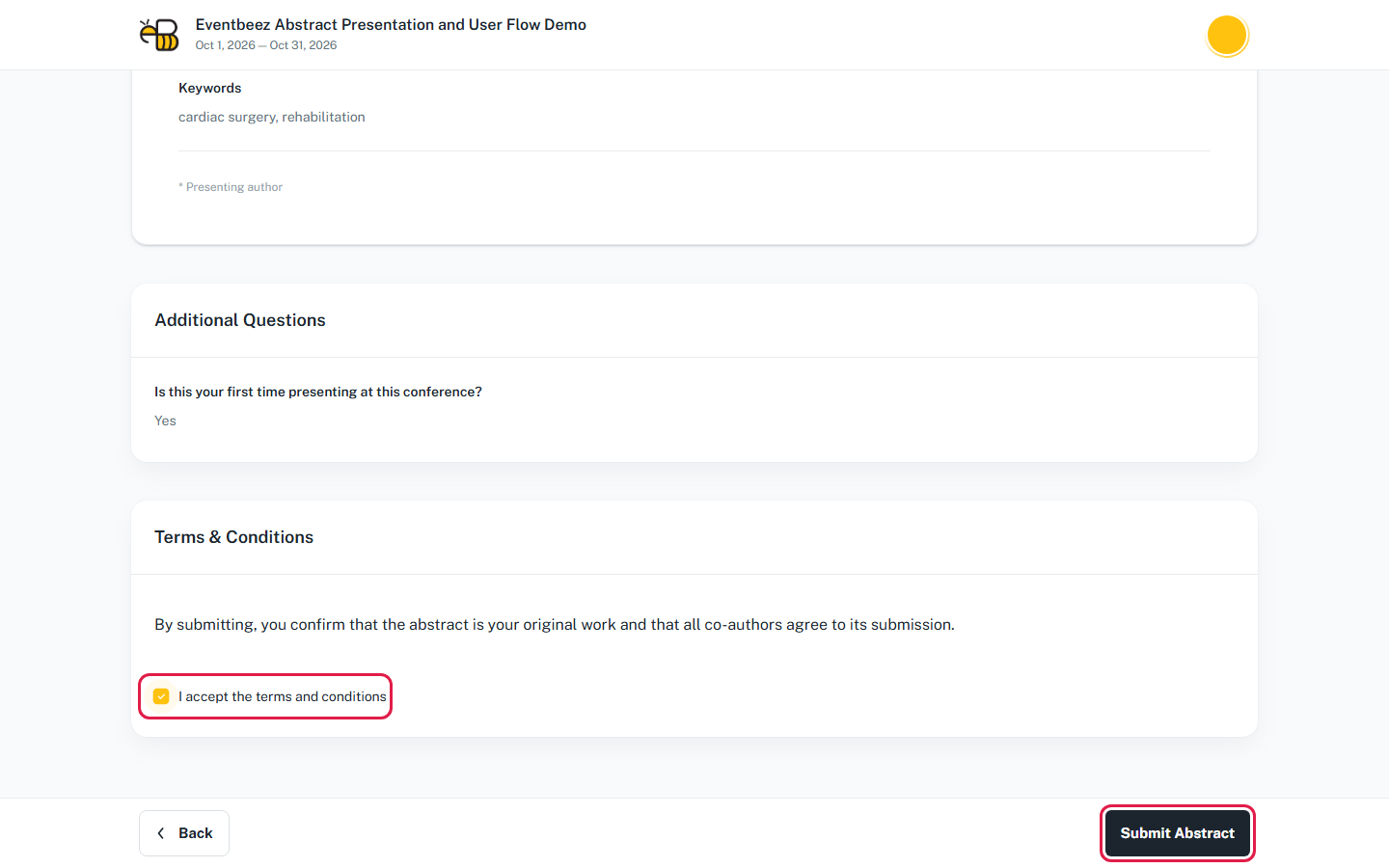
Check the preview of your abstract. If the organizer set terms and conditions, tick I accept the terms and conditions. Then click Submit Abstract.
You'll get an Abstract Received email.
Editing after you submit
You can keep editing a submitted abstract until any of these happens:
- the first reviewer submits a review (your status becomes Under Review);
- the submission deadline passes;
- the organizer turns submissions off;
- results are published.
Each time you submit again, you get another Abstract Received email.
Deleting or withdrawing
You can't withdraw a submitted abstract in the portal. If you need to, contact the organizer.