Submissions and decisions
All submissions
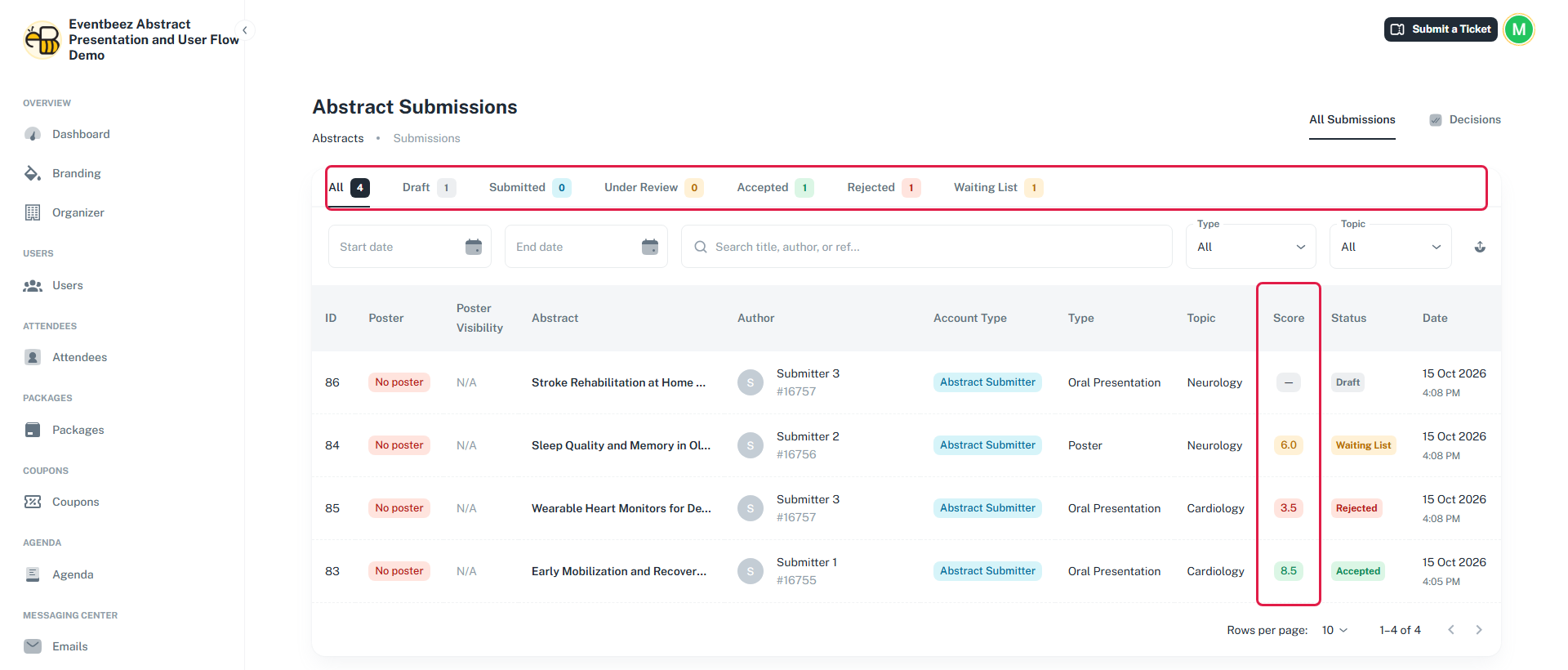
Abstracts > All submissions lists every abstract, drafts included.
- Status tabs: All, Draft, Submitted, Under Review, Accepted, Rejected, Waiting List, each with a count.
- Filters: start and end date, a search box (title, author or reference), Type and Topic. Clear resets them all.
- Export: the download icon exports the filtered list as a CSV file. You need the export permission, which no role has by default, so ask your account admin to grant it.
- Score shows the average of completed reviews, or — if there are none yet.
- Account Type shows whether the author is an Event Attendee or an abstract-only Abstract Submitter.
An abstract's details
Click a row to open Abstract overview:
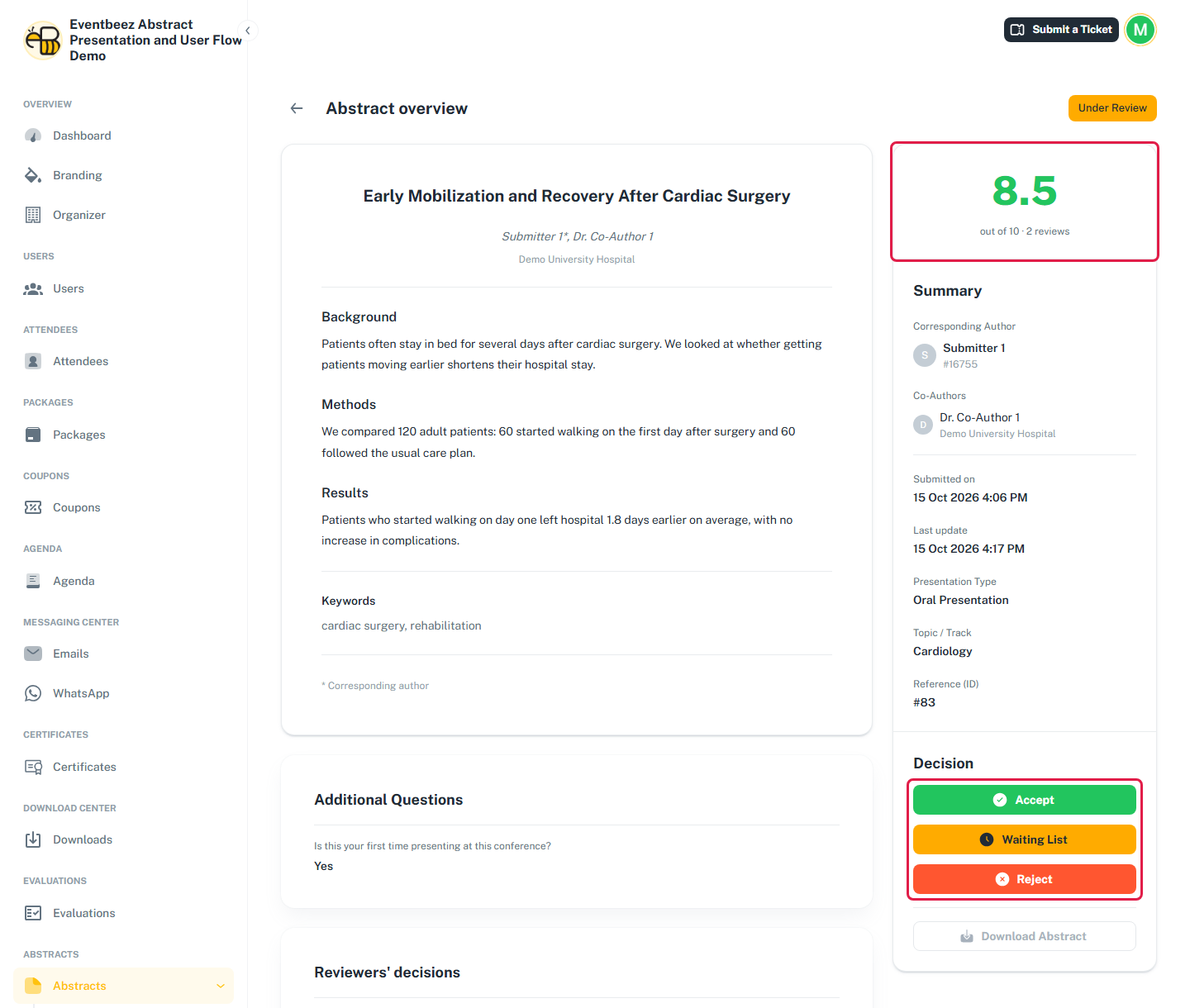
- The abstract – title, authors (the corresponding author is marked *), every section, references, acknowledgements and keywords.
- Additional Questions – the author's answers.
- Reviewers' decisions – each reviewer's name, score out of 10 and comment.
- Score – the average out of 10 and the number of reviews. Green means 7 or more, orange 5 to under 7, red under 5.
- Summary – authors, dates, presentation type, topic and reference.
- Decision – Accept, Waiting List and Reject buttons.
Deciding one abstract
Click Accept, Waiting List or Reject on the abstract's page. The decision is saved straight away, without a confirmation step.
- You can only decide once all assigned reviewers have reviewed it. Otherwise you'll see "This submission cannot be decided on until all reviewers have completed their reviews."
- Drafts can't be decided.
- You can change a decision at any time.
- Before results are published, the author still sees Under Review (see Results and score visibility).
If an accepted author was already made a presenter (results were published), rejecting them later shows a warning. EventBeez won't automatically remove their Abstract Presenter role, cancel their payment record or refund them. Do that yourself from their attendee record.
Deciding in bulk (Decisions tab)
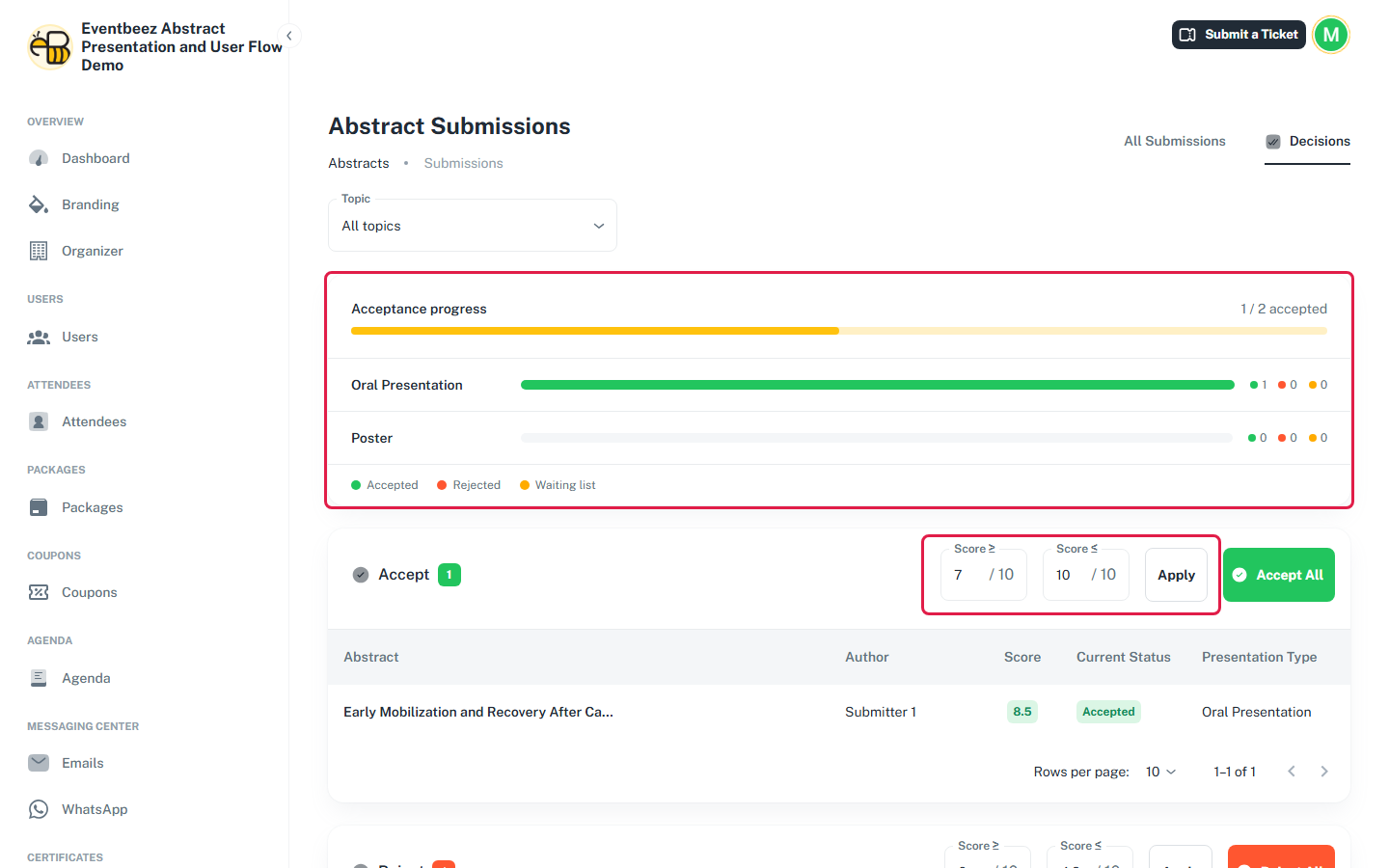
The Decisions tab on All submissions decides many abstracts at once by score. You only see it if you're allowed to make decisions.
-
Optionally pick a Topic.
-
Each of the three sections has a score range. Change Score ≥ and Score ≤ if you want, then click Apply.
Section Default range Button Accept 7 – 10 Accept All Reject 0 – 4.9 Reject All Waiting List 5 – 6.9 Add to Waiting List -
Click the section's button and confirm.
- Only fully reviewed abstracts appear here. An abstract still waiting on a reviewer isn't listed and isn't changed.
- Acceptance progress at the top compares the accepted count with your acceptance targets, with a breakdown by presentation type.
Bulk decisions made after publishing results don't send results emails and don't make accepted authors presenters. After publishing, decide abstracts one at a time from their own page.
Overview
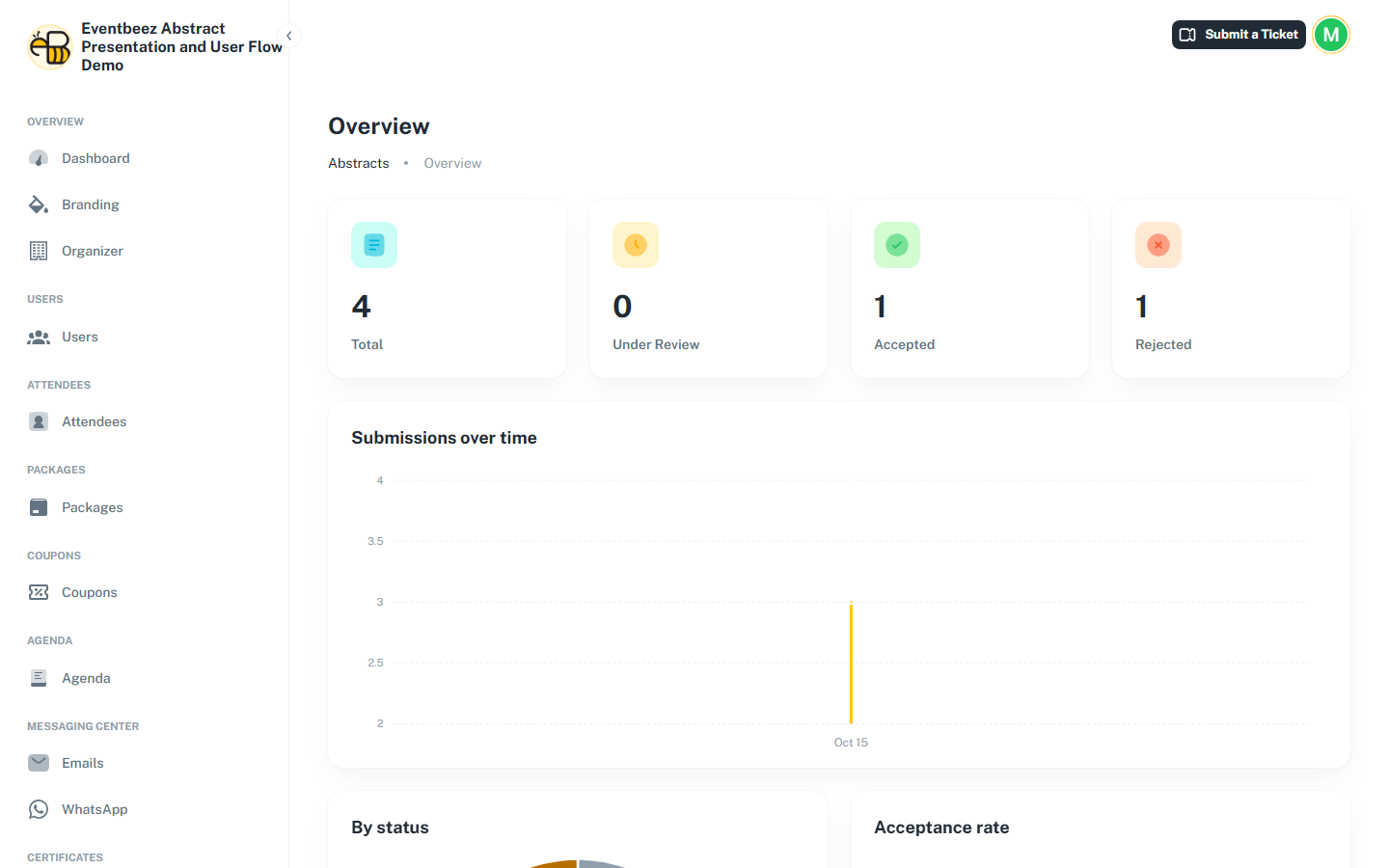
Abstracts > Overview has the totals (click a card to see that status), submissions over time, a breakdown by status, the acceptance rate, breakdowns by presentation type and topic, the score distribution and the top reviewers. Total includes drafts.