Set up abstracts
Every event sets up abstracts once, with a seven-step wizard. After that, you change each part from its own page (see Manage abstract settings).
Before you start
- You need the abstracts setup permission. Without it the Setup Abstracts button doesn't appear.
- If the event's grace period has expired, every Abstracts page shows Module Access Restricted. Settle the event's payments under Go to Billing to get access back.
- For a paid event, create the event's payment periods first. The acceptance package needs a price for each one.
Open the wizard
- Open your event in the admin dashboard.
- In the sidebar, click Abstracts, then Overview.
- On the No abstracts configured yet screen, click Setup Abstracts.
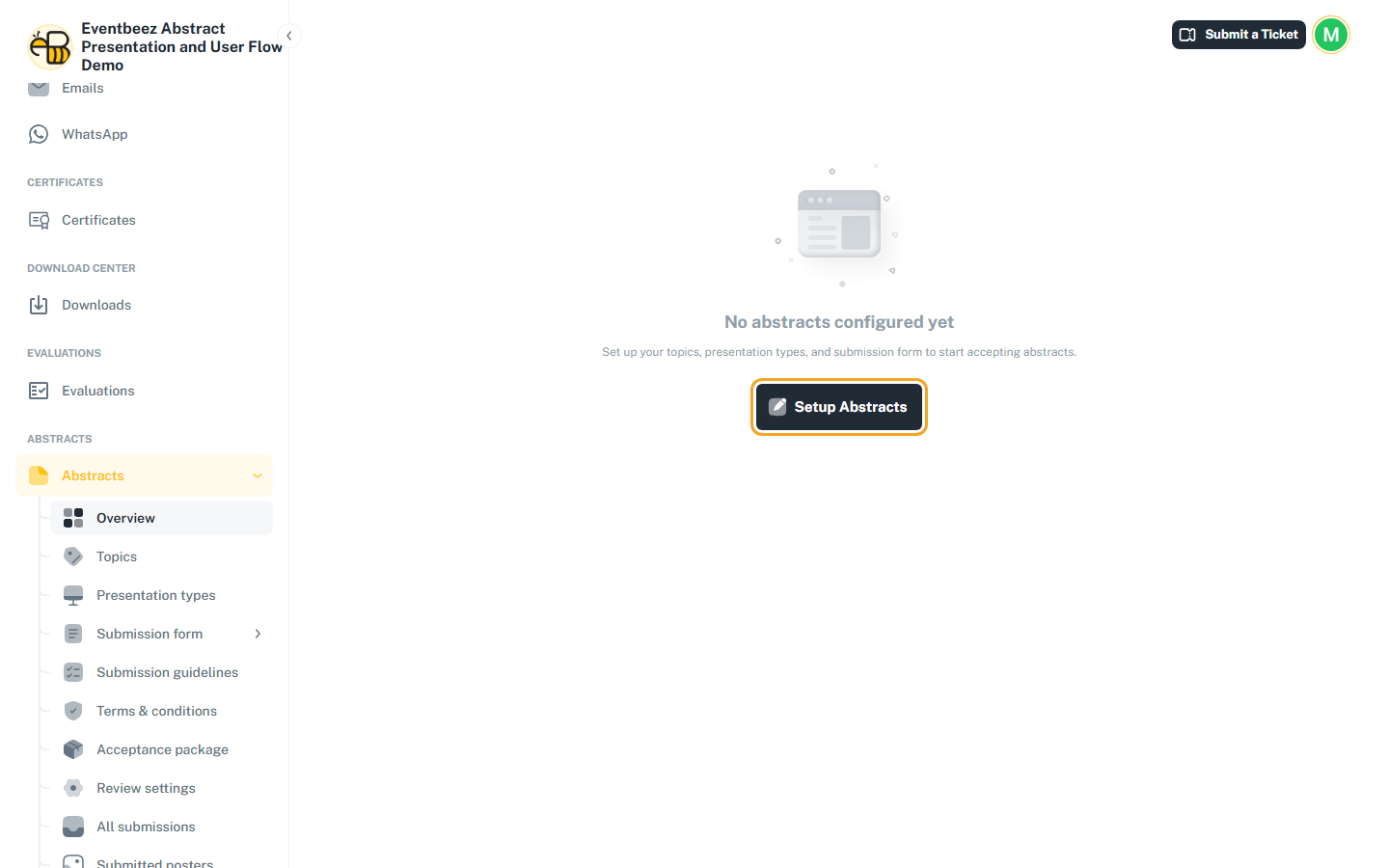
The wizard opens full screen, with the steps listed on the right.
- Next Step checks only the current step. If something is wrong, the errors show on the fields and you stay on the step.
- You can click any earlier step in the list to go back. Later steps can't be clicked until you reach them.
- Your progress is saved in this browser as you go. If you close the tab and come back on the same browser, the wizard resumes where you left off. On a different browser or computer you start again.
- The X in the top bar asks Discard setup?. Choosing Discard & Leave deletes your progress.
Step 1 – Topics
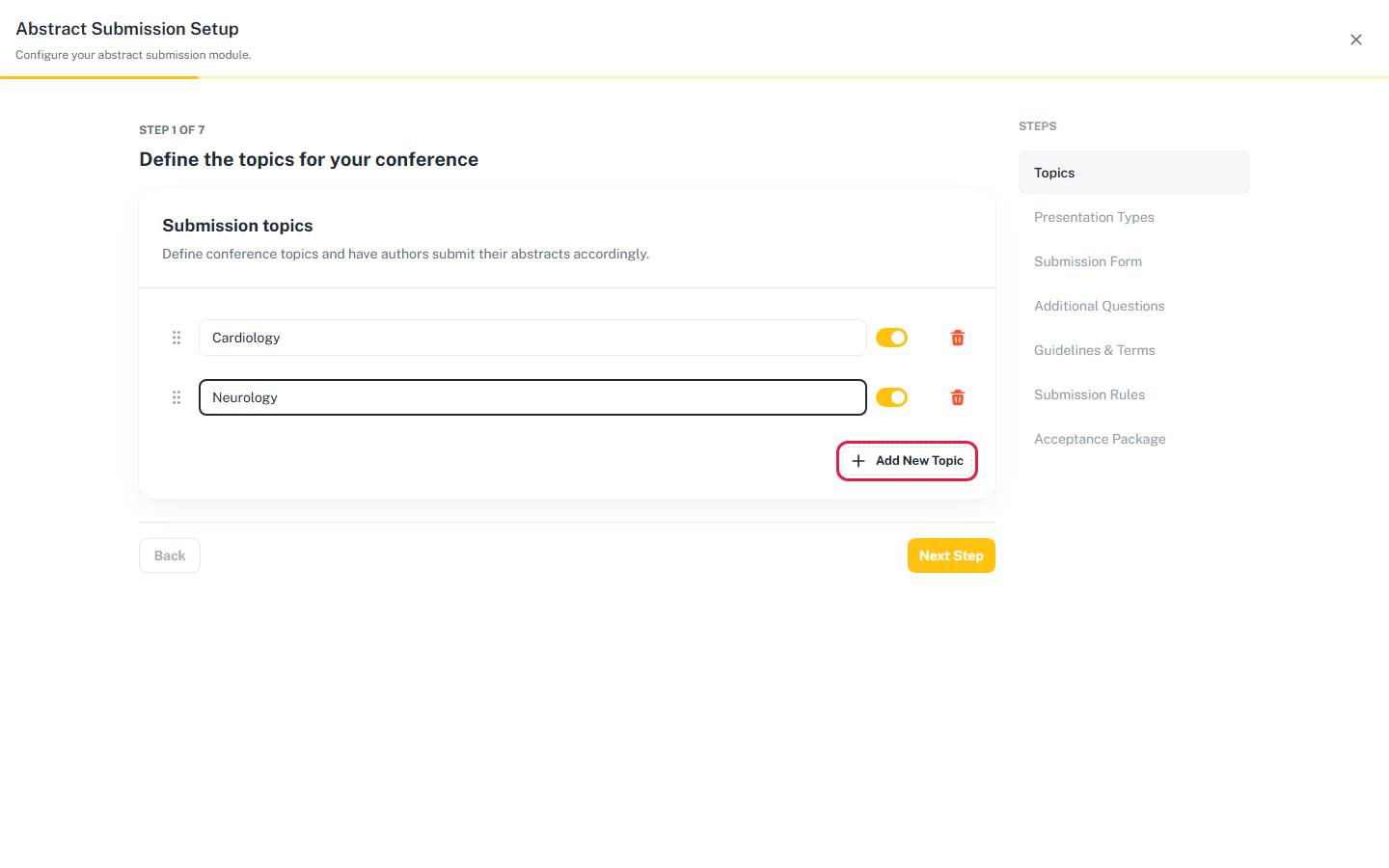
"Define the topics for your conference"
Topics (also called tracks) are what authors file their abstract under. Reviewers are assigned per topic, so plan your topics around your reviewer groups.
- Click Add New Topic for each topic, and drag the handles to reorder them.
- Use the switch to hide a topic from authors without deleting it.
- Rules: at least one topic, at least one enabled, no duplicate names (capital letters don't count), 191 characters at most.
Step 2 – Presentation types
"What types of presentations will you accept?"
For example Oral, Poster or E-poster. Each presentation type gets its own set of fields in the next step.
- Click Add New Presentation Type. The rules are the same as for topics.
Step 3 – Submission form
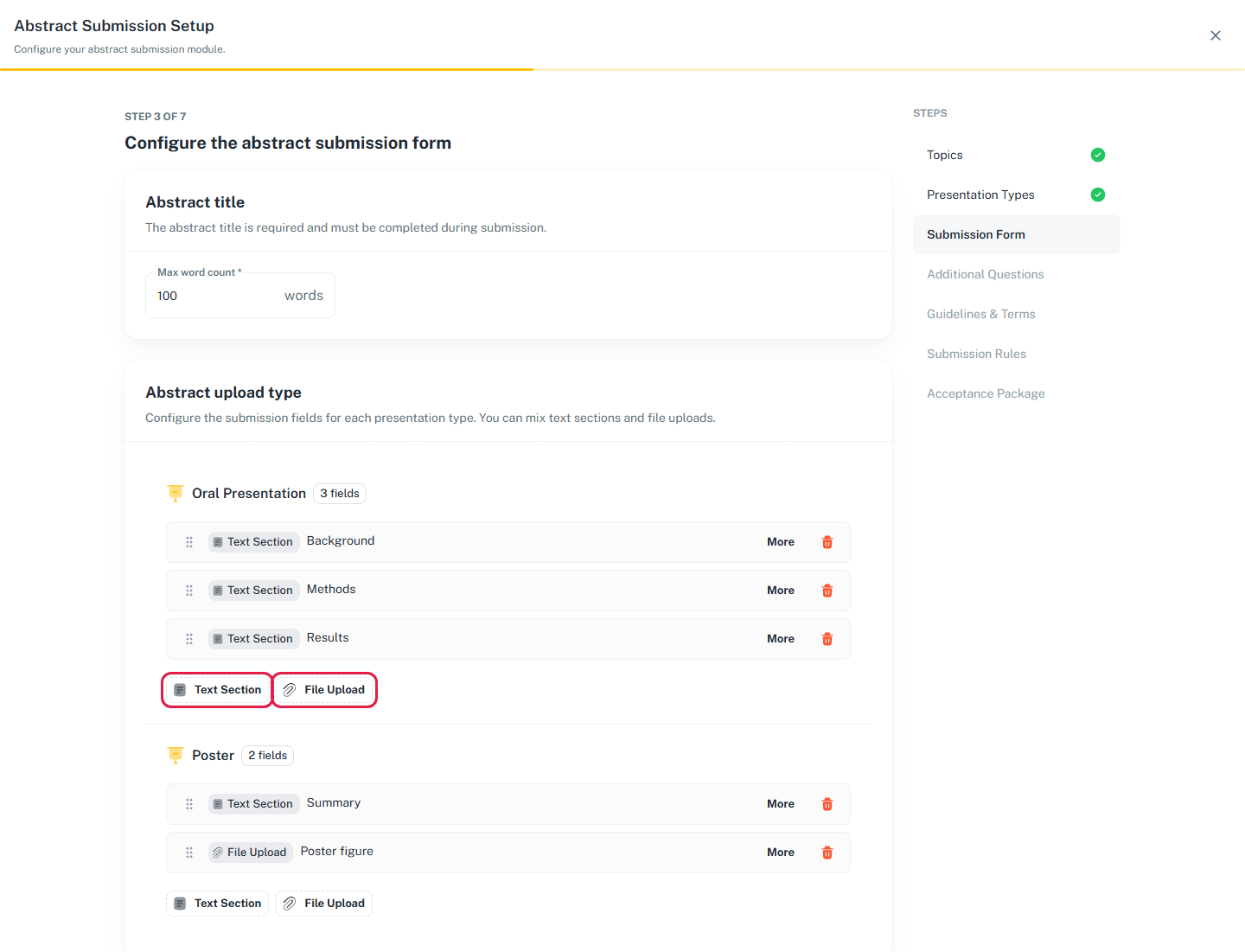
"Configure the abstract submission form"
Abstract title. Set Max word count for the title. The default is 100.
Abstract upload type. Each presentation type has its own block. Add fields to it with:
- Text Section – a text box, for example Background, Methods or Results. Under More you can set a placeholder, a hint, Min words and Max words.
- File Upload – a file field. Under More you can set the allowed file types (images, documents, spreadsheets) and Max file size (KB), which can be at most 5000 KB.
You can't continue until every presentation type has at least one field. A presentation type with no enabled fields is hidden from authors altogether.
Optional sections. Turn these on to add them to every abstract:
- References – a rich-text box. Authors must fill it in when it's on.
- Keywords – free-text tags.
- Acknowledgements – a rich-text box. Authors must fill it in when it's on.
Step 4 – Additional questions
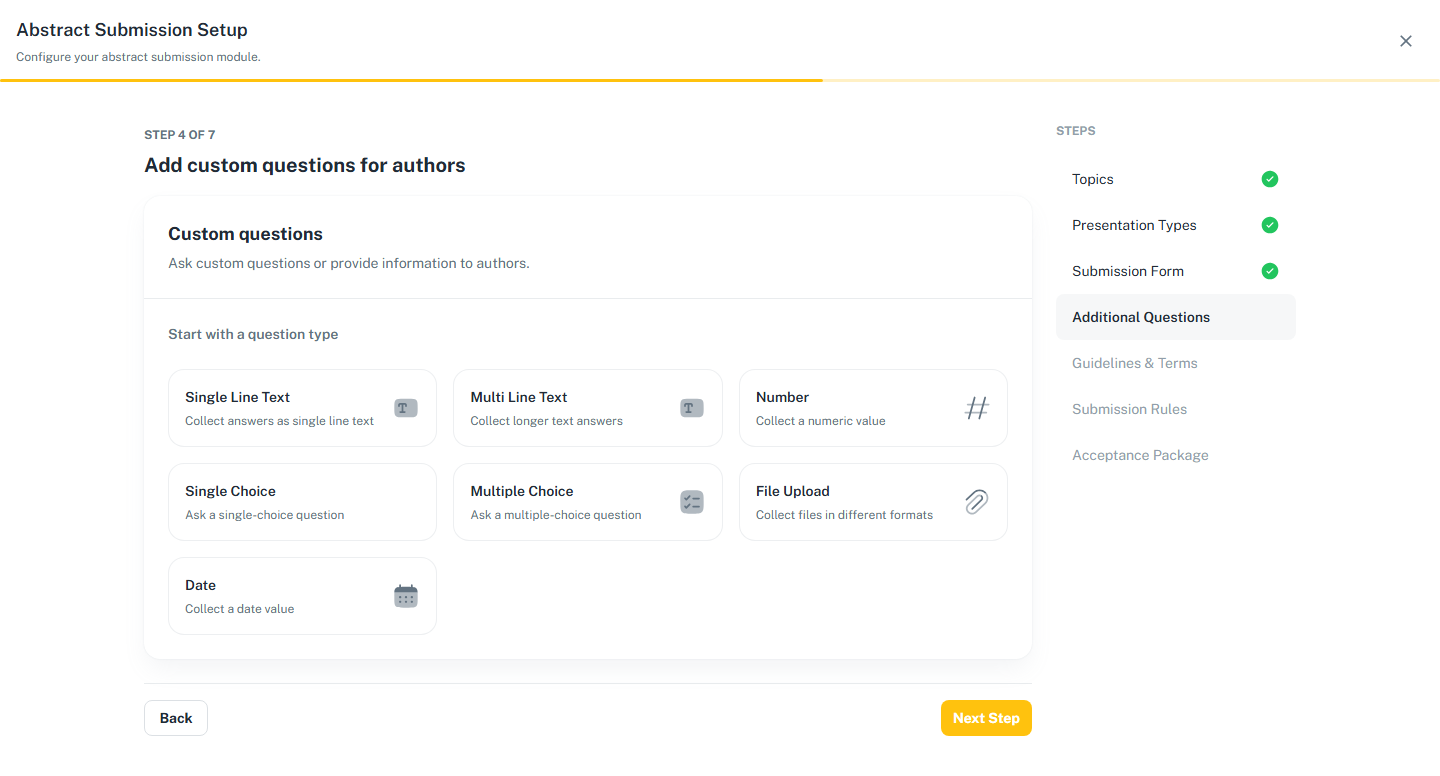
"Add custom questions for authors"
This step is optional. You can add these question types:
-
Single Line Text
-
Multi Line Text
-
Number
-
Single Choice
-
Multiple Choice
-
File Upload
-
Date
-
Every question is required unless you tick Optional.
-
Single Choice and Multiple Choice need at least two options, each with a different name.
-
Under More you can set minimum and maximum characters (text), minimum and maximum values (number), or file rules (file upload).
Once any abstract exists, even a draft, you can no longer change the additional questions. Settle them before you open submissions.
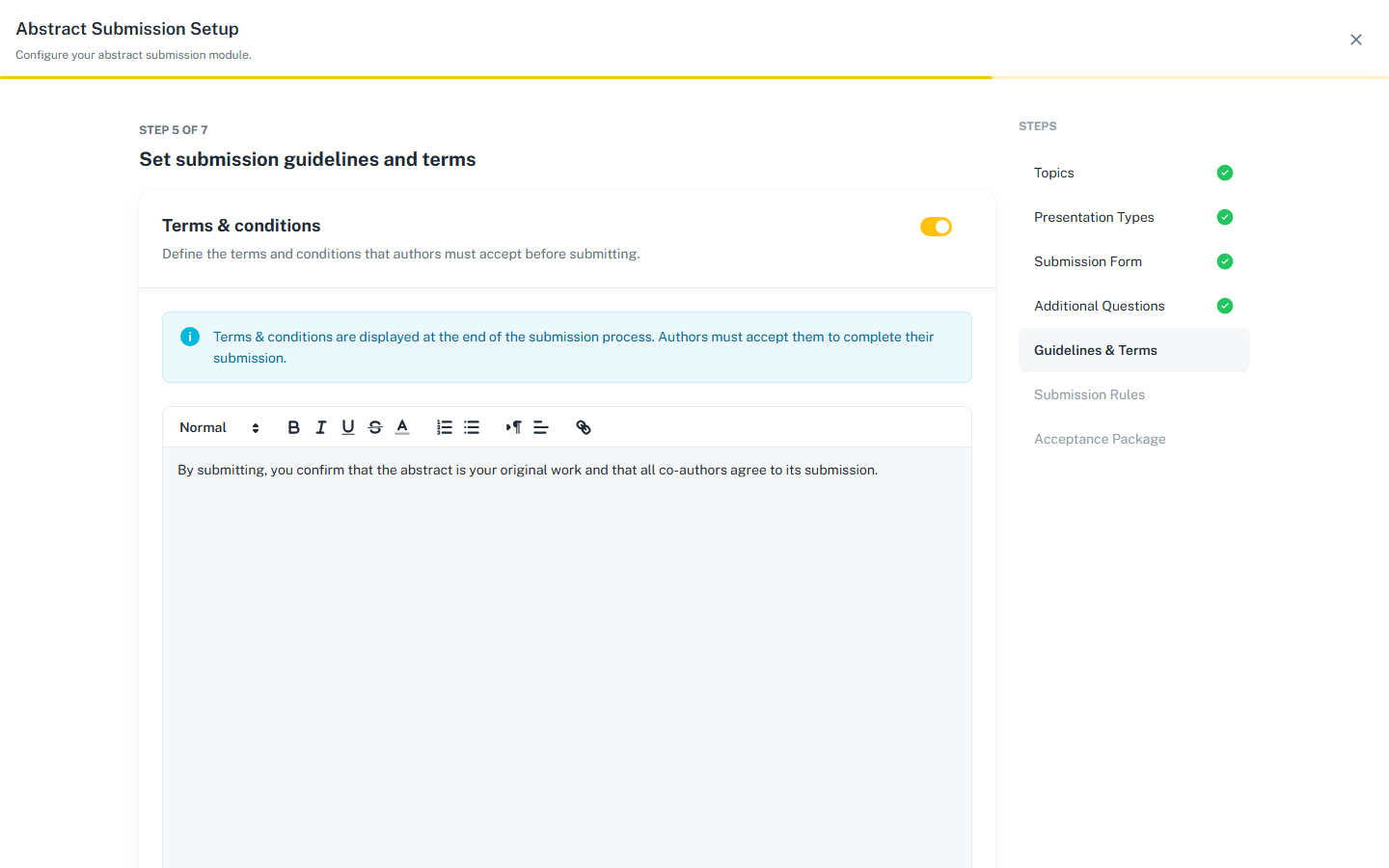
Step 5 – Guidelines and terms
"Set submission guidelines and terms"
- Terms & conditions. When this is on, authors must tick I accept the terms and conditions on the last step before they can submit. You must enter the terms text.
- Submission guidelines. When this is on, authors see a Submission Guidelines button. Choose either Rich Text (HTML) and write the guidelines, or PDF File and upload a PDF of up to 10 MB.
Step 6 – Submission rules
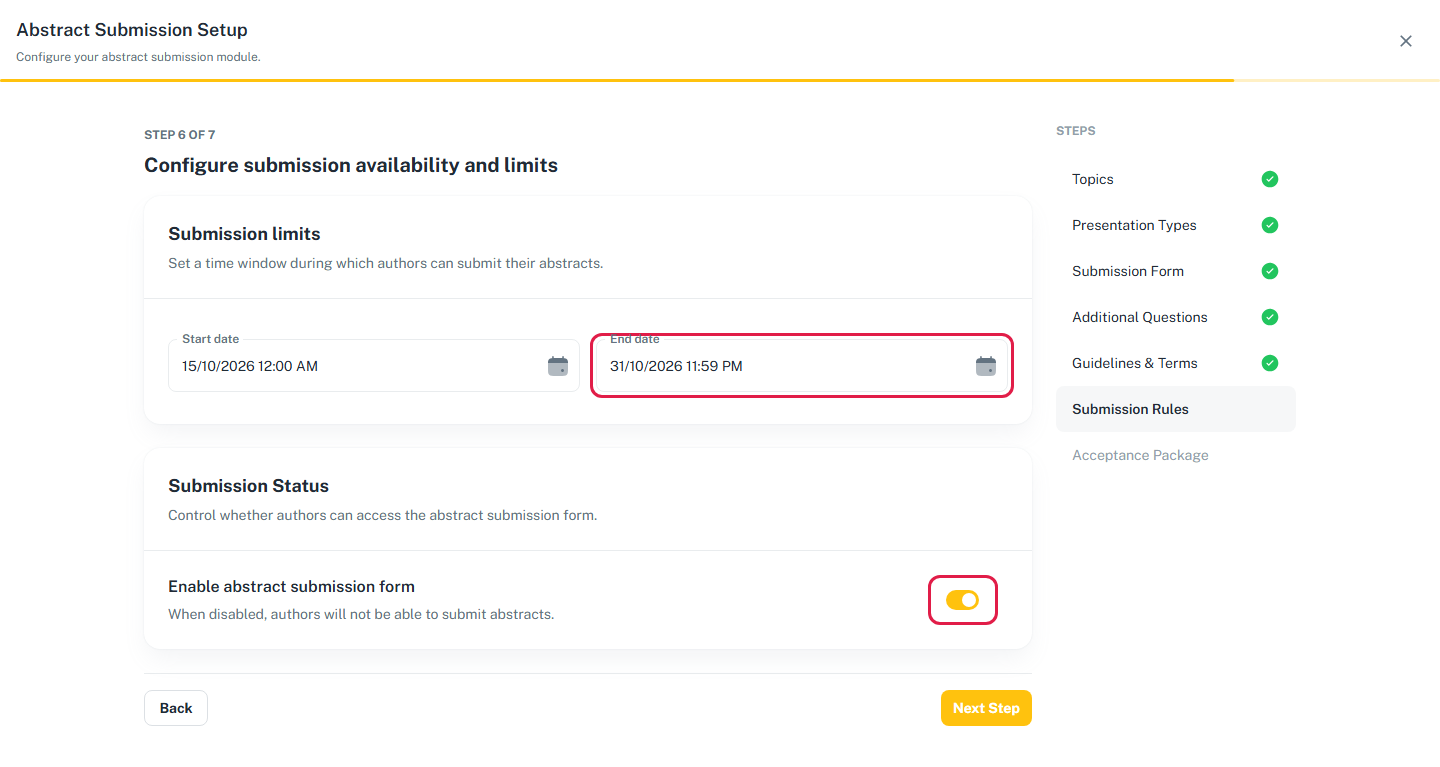
"Configure submission availability and limits"
- Start date and End date set the submission window, in the event's time zone. Both start out as the current date and time, so you must move the end date later to continue.
- Enable abstract submission form is off by default. Authors can't register, create, edit or submit anything until you turn it on. You can leave it off during setup and turn it on later under Submission form > Access conditions.
Accepted authors can only upload posters while the submission window is open. If you'll collect posters after publishing results, set the end date late enough to cover that, or extend it later. See Posters.
Step 7 – Acceptance package
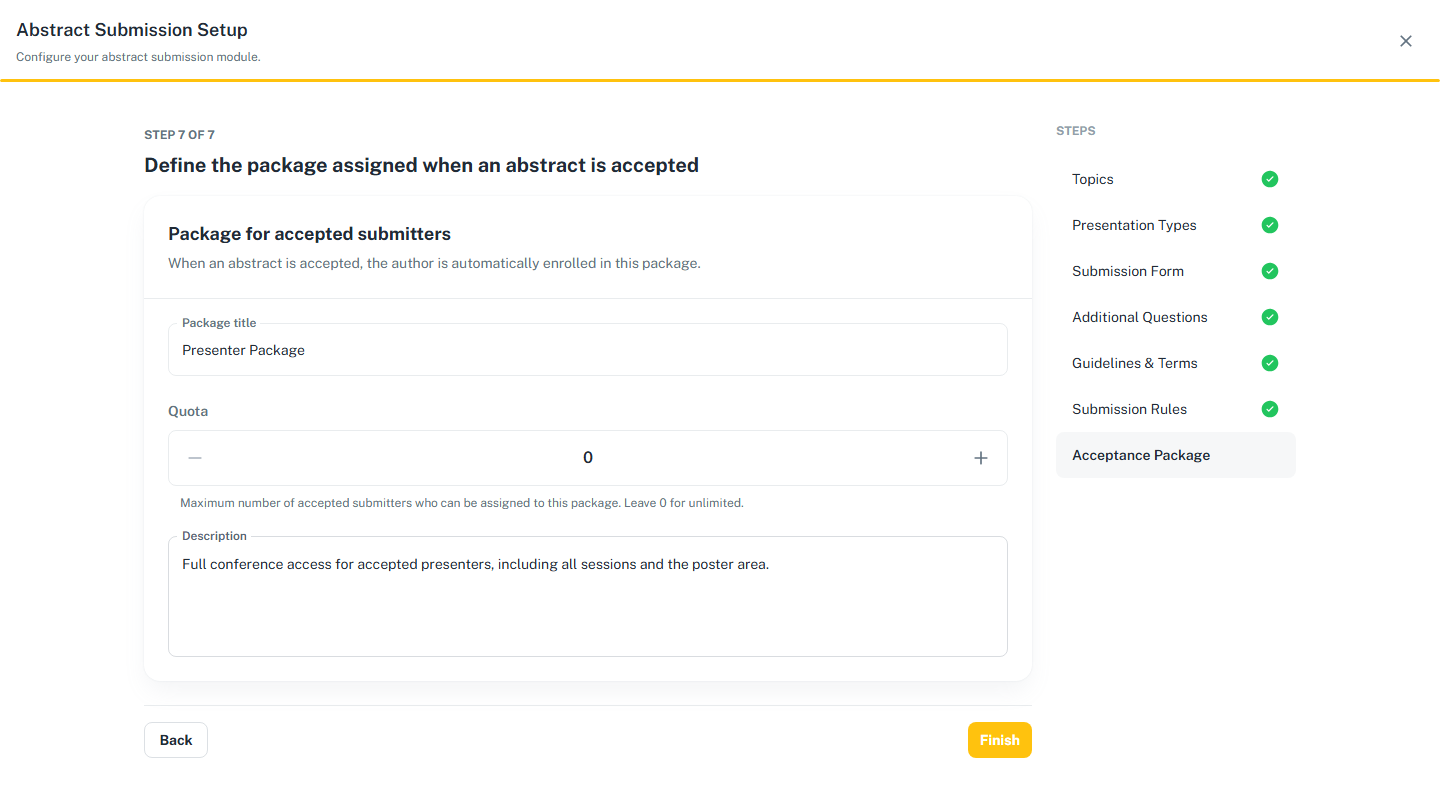
"Define the package assigned when an abstract is accepted"
When you publish results, every accepted author who isn't already registered is enrolled in this package.
- Package title (required), for example Presenter Package.
- Quota – the most accepted authors who can be assigned. 0 means unlimited.
- Description – what the package includes.
- Fees (paid events only) – one price for each payment period. A paid event with no payment periods can't finish setup.
This package is hidden from normal registration. You can only manage it under Abstracts > Acceptance package, not on the regular Packages page.
Finish
Click Finish. You'll see Abstract created successfully, and the wizard takes you to the Abstracts Overview. Setup can only be done once.
Next steps
- Assign reviewers and set review rules. This is required before reviews can start.
- Turn on Enable abstract submission form if you left it off.
- Share the attendee portal link with authors.